Products Feed for Dynamic Ads & Insta Tagging
Compatibilidad > 1.6 - 1.7 - 8.1

Products Feed for Dynamic Ads & Insta Tagging

Just for Facebook & Instagram.
Export your product catalogue to Facebook to create Dynamic Product Ads. The most powerful remarketing feature from Facebook and use the Instagram Product Tagging.
SmartModules
Description
With this easy-to-configure module you will be able to create a product catalogue to later import it to Facebook and use it for Facebook and Instagram Product Tagging.
 
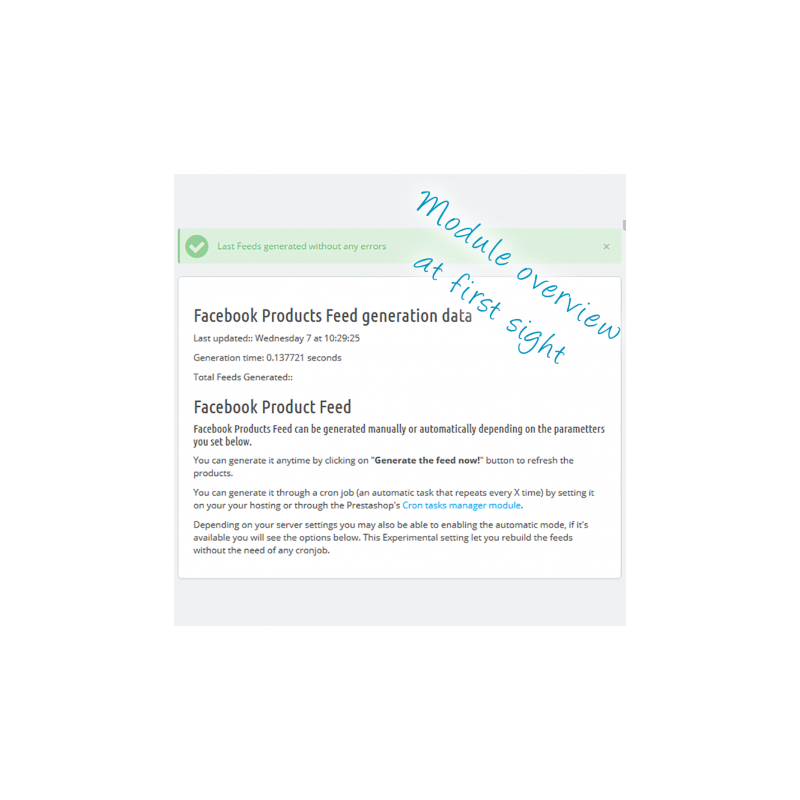
From the configuration page you will be able to choose from several options to customize the feed generated.
 
Once generated the Product Catalogue can be used to create regular product ads or to tag products in Instagram posts, but it's best to use it with Facebook Conversion Tracking Plus module to be able to use the Dynamic Product Ads.
 
With Facebook Products Feed for Dynamic Ads & Insta Tagging you will be able to export your Products Catalogue to Facebook. The Product Catalogue contains basic and the additional information, such as the products attributes and it's needed to use the Dynamic Product Ads.
 

What are the dynamic Product Ads?

 It's an advanced retargeting feature from Facebook. Automatically created ads based on the behaviour and interests of your customers.
 
Since the Ads are generated dynamically for each customer the campaigns have much less maintenance and a much lower cost and better conversion rates.
 
Once the customer buys the product the modules sends the necessary data to make that customer don't see the ad any more (unless he shows interest on any of your products again).
 

What is the Instagram Product Tagging?

Is a feature only available for certified accounts that let you tag products from your shop on Instagram Posts.
 

Ease to use and well documented

Every section of the module is well documented, meaning that you won't need any previous experience to configure and use the module. There are also some advanced options to have a better control with the feeds generation.
 
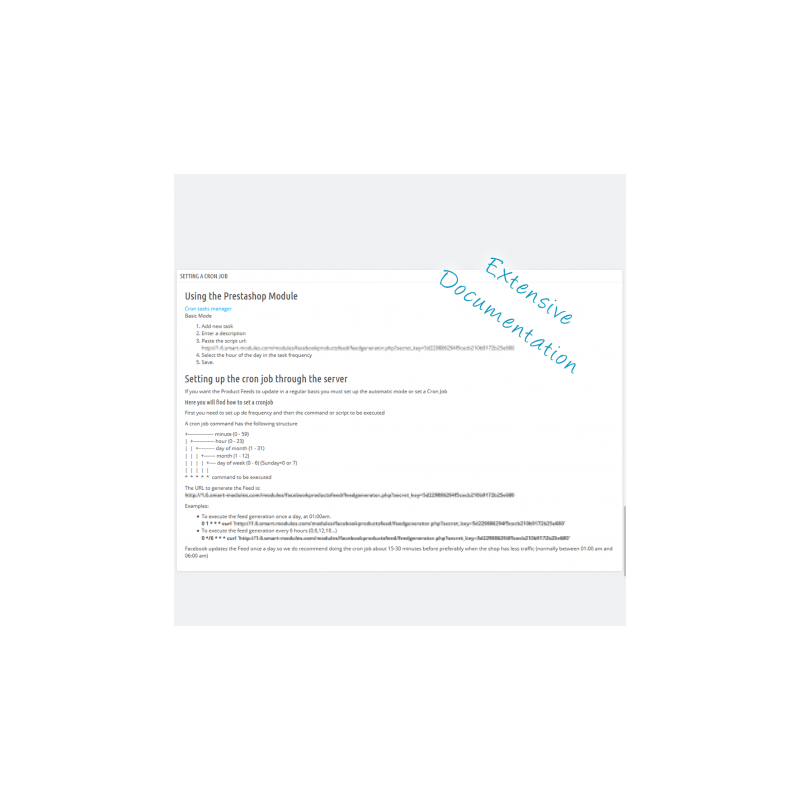
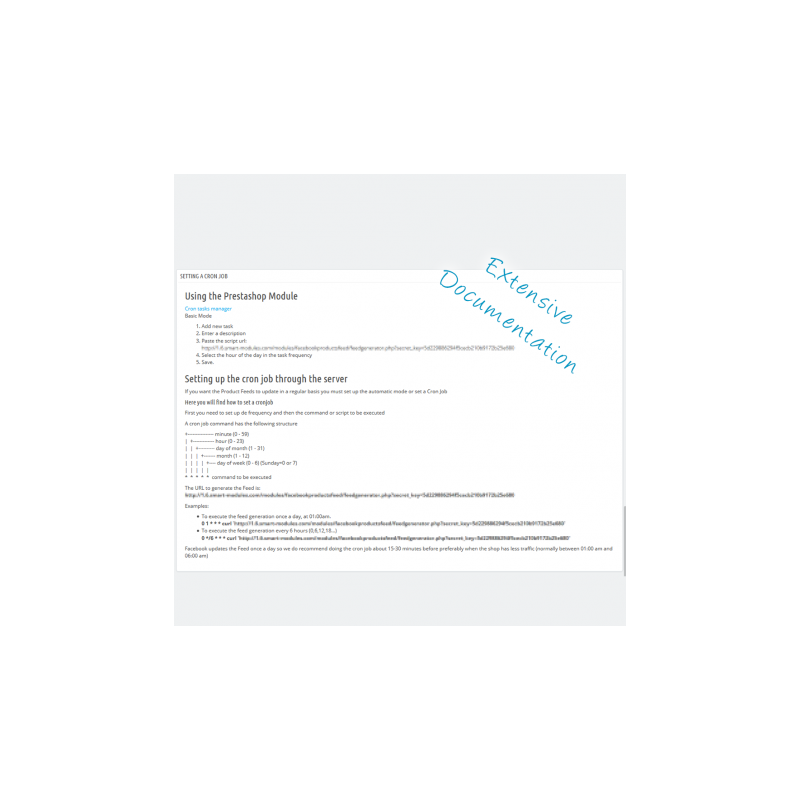
Or a step-by-step guide on how to configure a Cron Job (a sever side script to automatically update the feed).
 

Errors

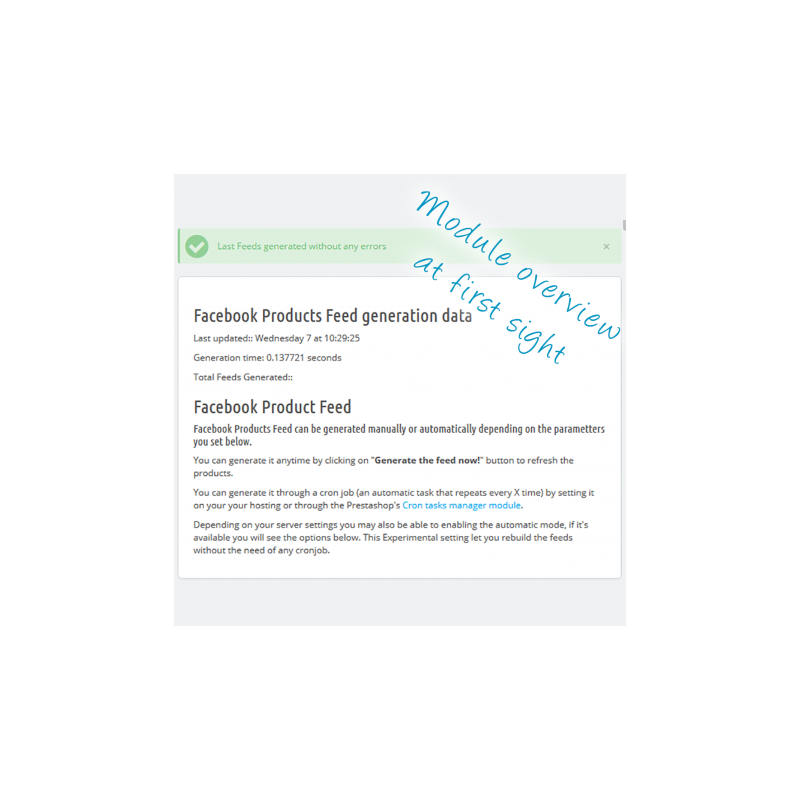
The module will also try to check and notify of the errors that Facebook may found when uploading the module making it easier to find and solve.
 

Catalogue Filtering

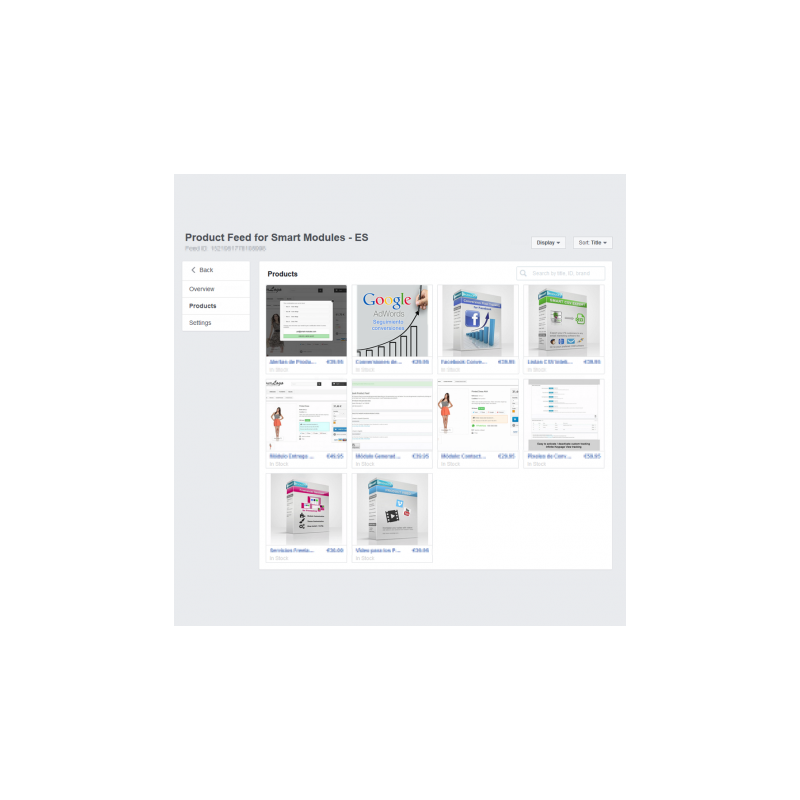
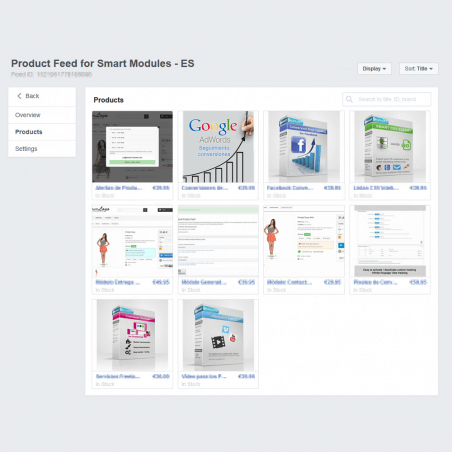
Sometimes you don’t want to show all your products in the ads, Facebook has powerful filters to create Product Sets that can later be used for Ads, this way you can exclude all the products you want from your catalogue.
 
The number of product sets you can create on Facebook is unlimited and they won’t be lost after each automatic update.
 

FEATURES

• Ease to install and use
• Configurable options to customize the export file
• Supports multiple languages and shops
• Fully compatible with our module Facebook Conversion Tracking Plus
• Can create the feeds as a background process (don't affect navigation)
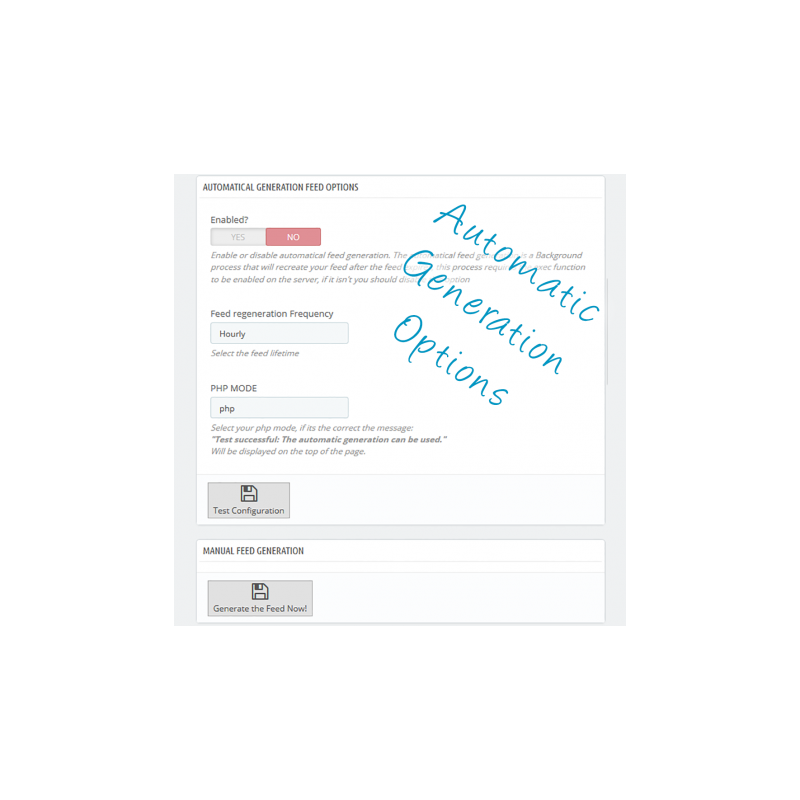
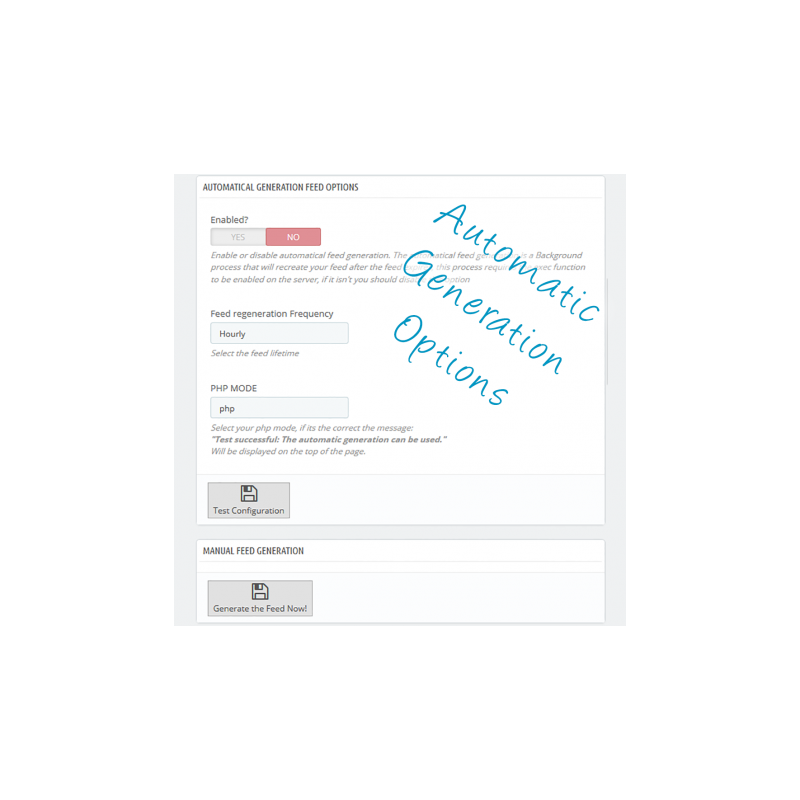
• Automatic generation options (through the Cron Job)
• Instagram Product Tagging
• Manual Feed Generation
• Extensive Documentation
• Fast support
 

BENEFITS

 
Facebook: Customers will see more accurate ads, based on what they like making them more likely to buy them from you
Instagram: Users will be able to easily buy any product what caches their attention from your Instagram stories
 

INSTALLATION

Installing the module

Upload the module through the Backoffice (Modules > Add New Module) or using a FTP client
Hit Install it and enter the configuration
In the image size section, we do recommend you to use the thickbox_default or large_default sizes. You can also use the Facebook recommended size for single product ads 1200x600, but to use it you will have to regenerate the thumbnails for that size first. To do that go to:
- Preferences > Images > Regenerate thumbnails
- Then choose (Products > fpf_image).
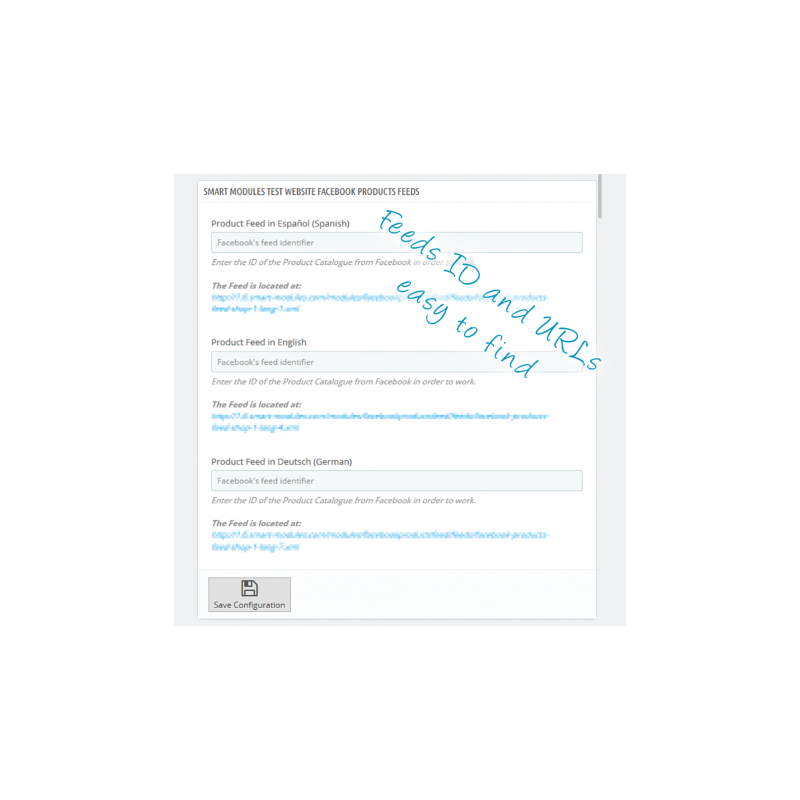
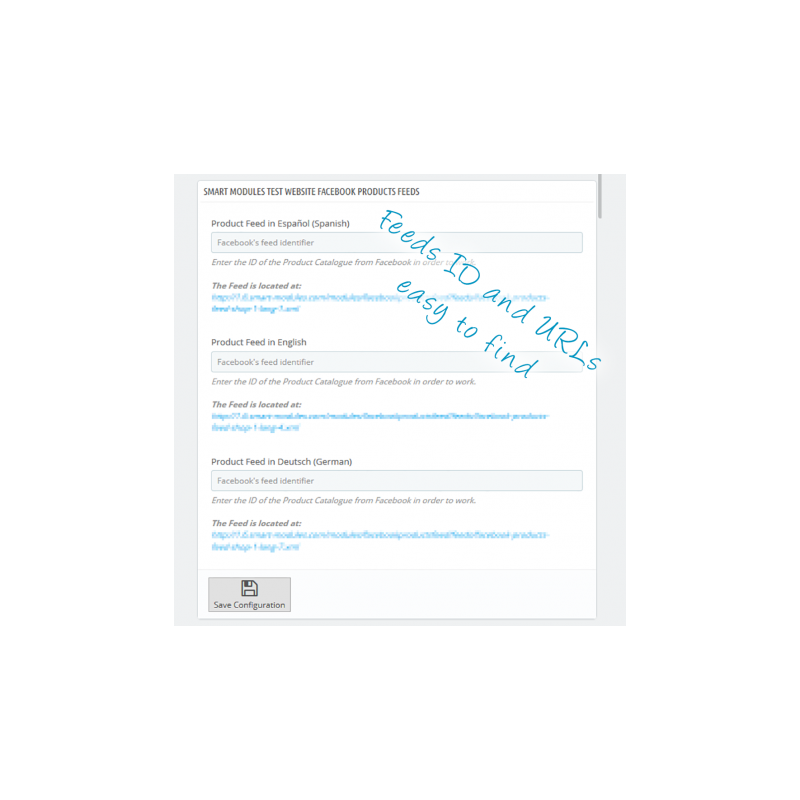
You will see a section called Feed locations for each shop, there you will be able to enter the Facebook Product Catalogue ID.
 
To obtain the Catalogue ID do the following steps for each language and shop you have on your site.
 

Creating the Product Catalogues

  1. Copy the feed URL below the box (in the module page)
  2. Open another tab on your browser and enter to your Facebook Business Account (http://business.facebook.com/)
  3. Create a Product Catalogue
  4. Click add a Data Source
  5. Choose the currency and the recurrent uploads option
  6. Choose the time to update the feed (the best hours are the ones you have less orders)
  7. Paste the feed url (copied before from the module configuration page)
  8. Now Go to the Catalogues menu
  9. Below the product catalogue’s name, you'll find it's ID. Copy it and paste it in the right place of the module configuration page.
 
*Repeat this steps until you have created all catalogues
 

Setting up the Module Options

Set up the options for the module, read the documentation and contact us if you have any question
 

RECOMMENDATIONS

To use the full potential of dynamic ads you will need a Facebook Conversion Tracking module with standard events support, we do recommend our module Pixel Plus: Event Tracking + Pixel Catalogue
 

OTHER

Top development priority

This module quite new and we will be continuously updating it to make it better. If you found any bug or suggestion, please contact us.
 

Support

Fast support on installation and configuration (Monday to Friday from 08:00 to 16:00 GMT+1)
Contact us through the link in the right side of this page
 

Ratings

If you love our module and customer service, please rate us and help other customers.

Products Feed for Dynamic Ads & Insta Tagging

This easy-to-configure module lets you export your products to a file (feed) so you can then import them into Facebook as product catalogs.

Once you have your product catalog you will be able to

Facebook

Create product ads and dynamic product ads

Instagram

Use Instagram Product Tagging to add links to your products directly from your Instagram Stories.

From the module's configuration screen you can set the different parameters so the export fits your needs. In addition, the Facebook feed generator includes several tools to detect errors or missing information so you can fix them faster.

Once the catalog has been generated and uploaded to Facebook, it can be used to create product ads (created manually) or with Instagram to tag products in your posts (you must first switch your account to a professional account).

When used together with Pixel Plus, which tracks all Facebook events, this module gives you the ultimate remarketing tool, dynamic ads: ads that are created automatically and personalized for each customer based on that user's behavior, with no effort on your part.

What are dynamic product ads?

Basically, it is retargeting. Ads created automatically according to the behavior of visitors on your website. These ads are generated dynamically through Facebook events, creating personalized ads for each visitor (one-to-one marketing). This lets you run long-lasting ad campaigns at a lower cost and with a higher conversion rate.

Once a customer makes a purchase, they will stop seeing ads related to the products they have bought.

Easy to use, well documented

Every section of the module is well documented, from basic settings to advanced parameters such as scheduling cron jobs.

Errors

The module will show the errors Facebook would find in the catalog, along with links to edit the affected products, making them easier to resolve.

Product filtering

Sometimes you don't want to show every product in the catalog in your ads. For this, Facebook has a tool that lets you create Product Sets, which are groups of products that share one or more characteristics. You can create an unlimited number of Product Sets, and they are not lost when the catalog is updated.

Features

Easy to install and use

Supports multiple languages and shops

Options to customize exports

Fully compatible with our Pixel Plus module

Can generate feeds in the background (does not affect browsing)

Automatic generation options

Compatible with Instagram Product Tagging

Manual feed generation

Extensive documentation

Error detection and suggestions

Fast, attentive support

Customer benefits

Facebook

Future customers will see more specific personalized ads based on their tastes, so they will be more likely to buy in your shop.

Instagram

Users will be able to buy the products they like from your Instagram Stories in just a few clicks.

Installation

Automatic: If your Addons account is linked to your PrestaShop, the module will be uploaded automatically.
Manual: To upload the module manually, go to your back office (Module Manager > Upload a module) or use an FTP client

Once added to your shop, you need to install and configure the module

Choosing the image size: in the image size section we recommend thickbox_default or large_default (usually the largest size for the product image). You can also use the 1200x600 size for individual posts; the module creates this image format by default, but products created previously will not have the image. To generate them, go to:
- Design > Image Settings > Regenerate thumbnails
- Then choose (Products > fpf image > do not delete existing images).
You will also see the feed locations section. In the case of multistore, as many sections will be created as there are shops installed. This is where you must enter the catalog ID (catalog number)

How to create product catalogs on Facebook

Next, you will see a section with links to the feeds. For each language and shop, a box will be created that you must fill in with the ID Facebook will give you later. After the box you will see the feed URL; copy it and repeat the following process for each catalog you are going to create.
  1. Open another browser tab and go to Facebook Business Manager (http://business.facebook.com/)
  2. Create a product catalog
  3. Click Add Products
  4. Select the currency and the Scheduled upload option
  5. Go back to the module tab and copy the feed URL.
  6. Select the Facebook tab and enter the feed URL
  7. Choose the daily update time (we recommend a low-traffic time such as 2-3 a.m.)
  8. Click upload (since the feeds have not been generated yet, you may get a warning in this section; ignore it).
  9. Copy the catalog ID. To find your catalog number, just go to Ads Manager > Catalogs and select the number below your catalog name. Alternatively, you can also get it from the address bar, which should have the following format: https://www.facebook.com/products/catalogs/00000000000000 where 00000000000000 is the catalog ID.
  10. Paste the number into the module configuration.

Repeat this process until you have created all the necessary product catalogs.

Setting up the other module options

Configure the different module options to fit your needs. Read the documentation or contact us if you have any questions or difficulties.

Recommendations

To get the full potential out of this module you will need a module that lets you track Facebook events, so we recommend our Pixel Plus module

Other

If you like the module and want to encourage us to keep adding great features, rate it and help other customers.

Fast, attentive support for installation, module configuration...
Languages: Spanish and English
Hours: Monday to Friday, 08:00 to 15:30

Help us improve this module by sending us your suggestions or requests for new features.

If you like this module and our Customer Service, send us your feedback!