English
 Español
 Deutsch
 Italiano
 Polski
 Français
 Nederlands
 Русский
 Bokmål
 Português PT
 Čeština


Let your customers create alerts for the products or combinations out of stock and send them an automatic email once you have stock again
Increase your sales and your customer’s loyalty with this amazing module.
- Businesses with physical and online stores
- Businesses with easy access to restock items
- Businesses that manufacture their own products
This module can be helpful to any business, because it will let you keep track of what your customers want more, for example if you have a product and it runs out of stock your customers will see it and they may leave your page without any action, but with this module they can create an alert and might wait a bit until you have it in stock again.
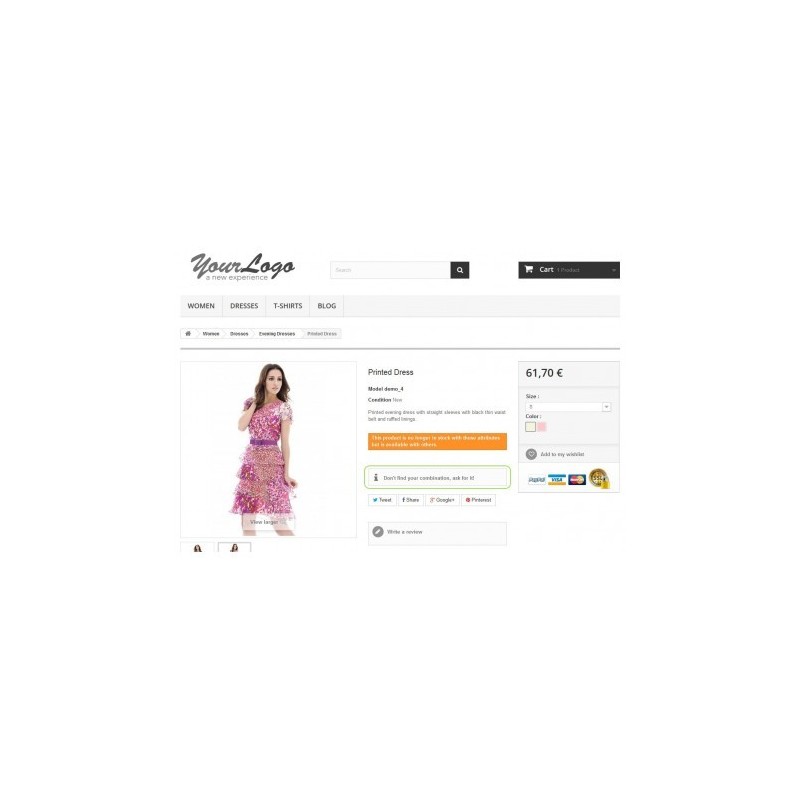
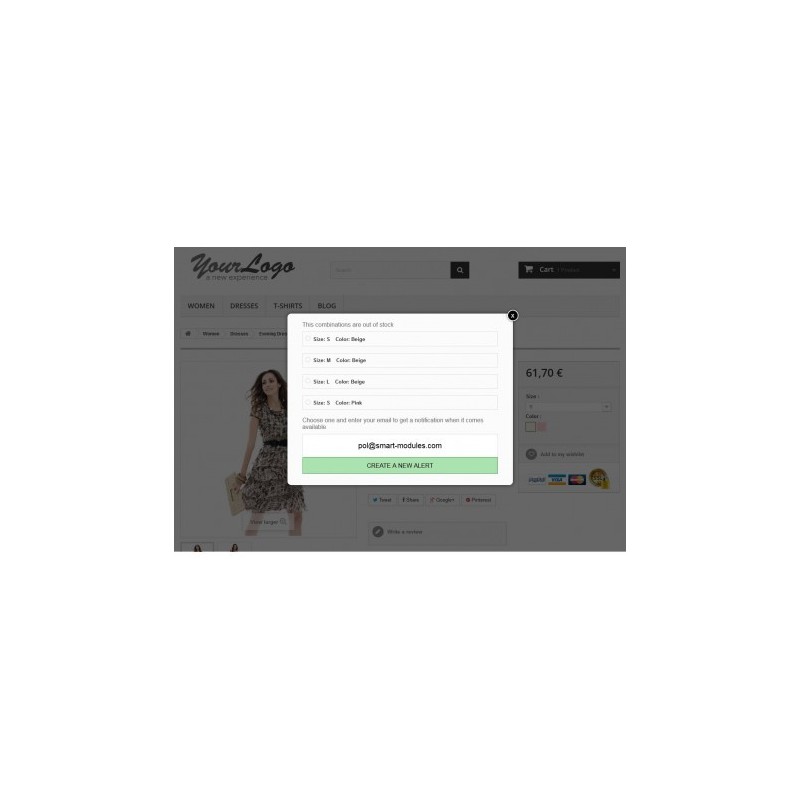
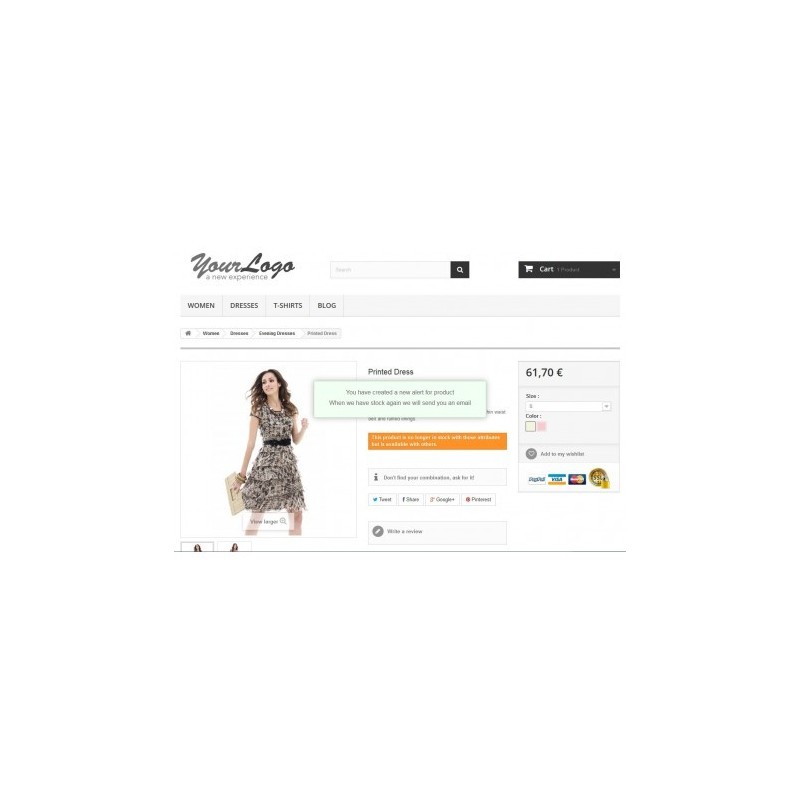
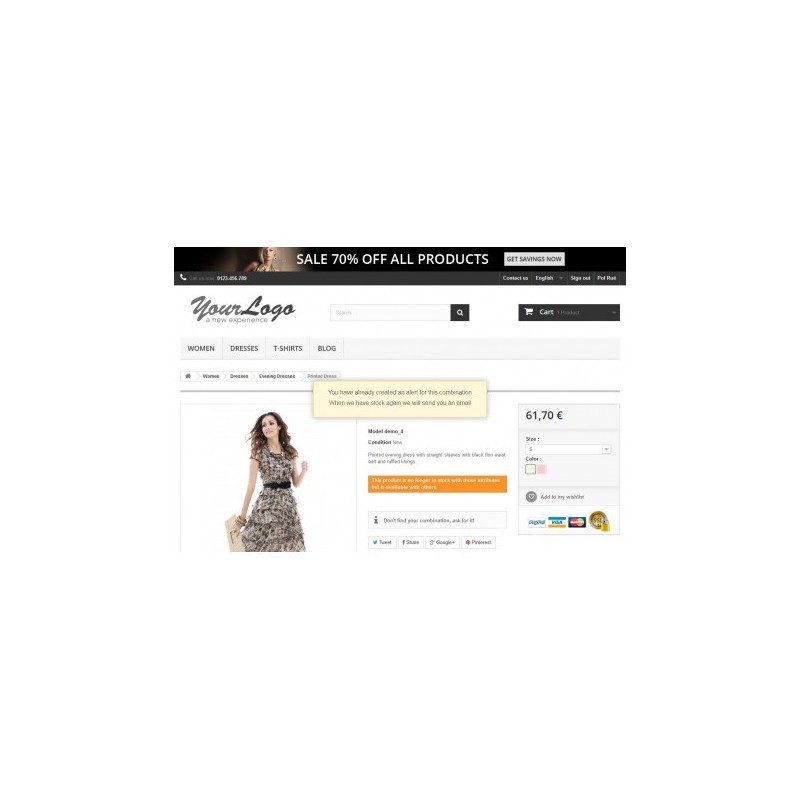
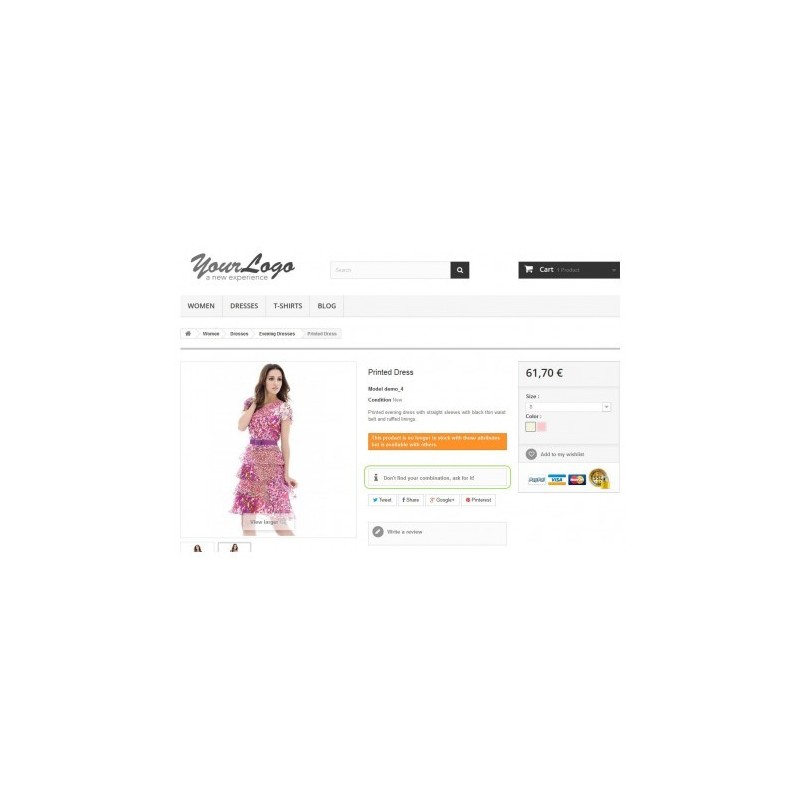
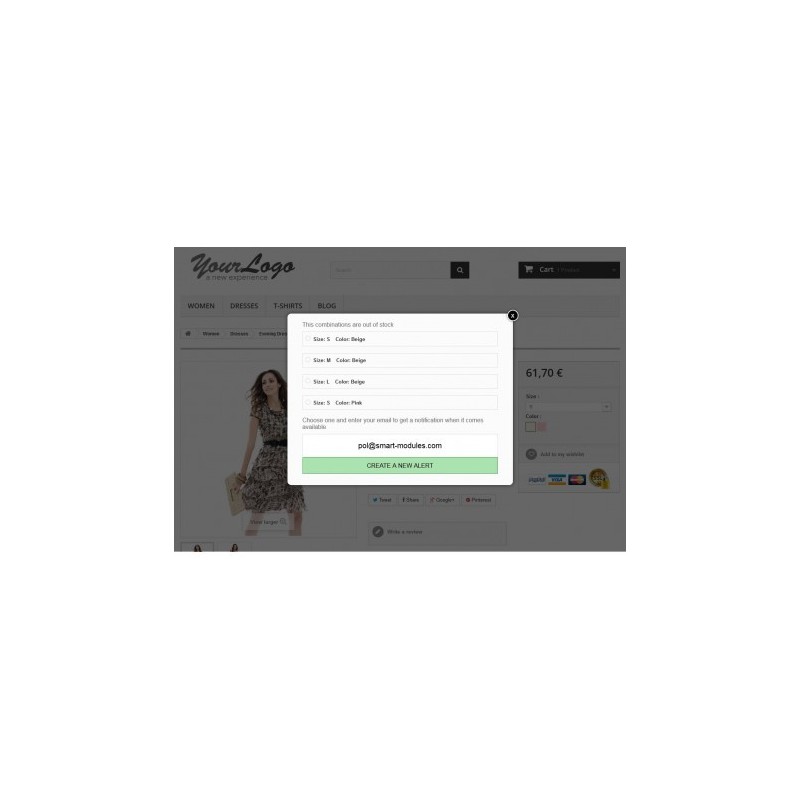
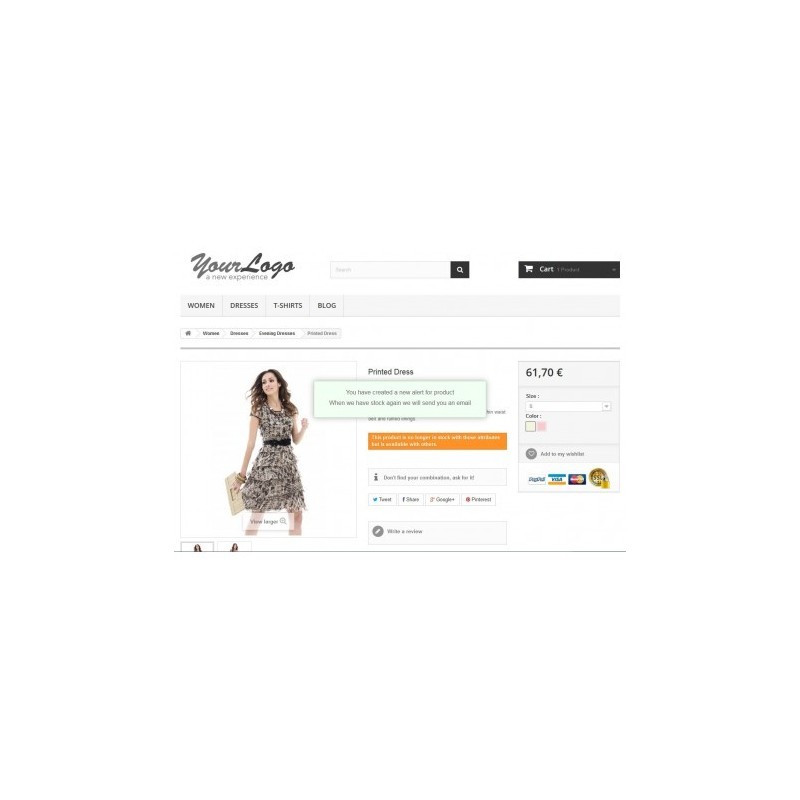
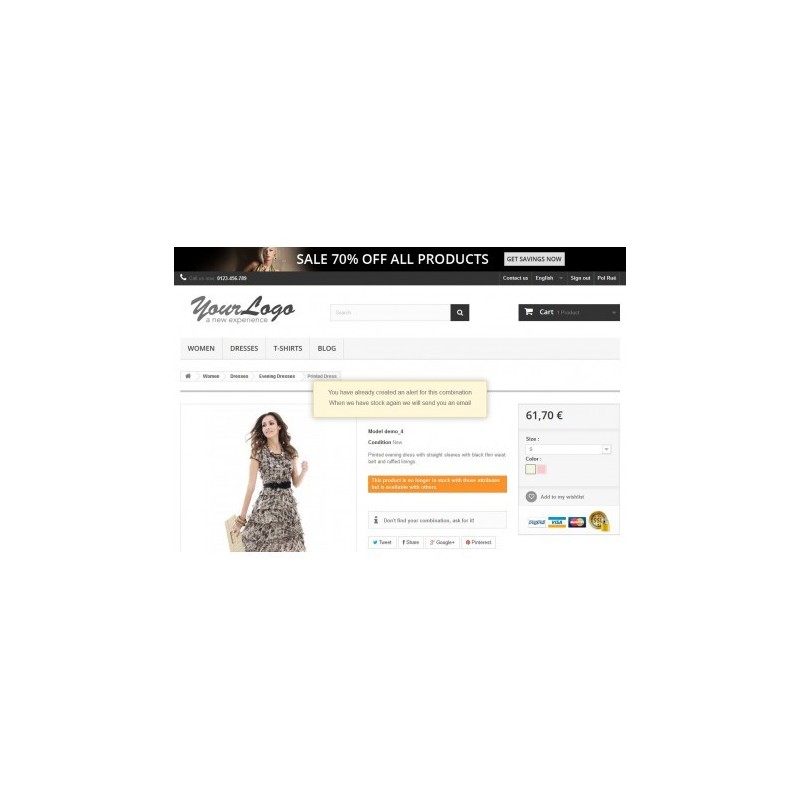
When a product or a combination is out of stock your customers will see a box inviting them to create an alert for what they're missing. Once they click on it a pop up with options will show and they will fill in their E-Mail.
Once the customer creates the alert he can receive a confirmation email (optional) and the admin can receive a notification too (optional). Apart from the confirmation the email also contains an image of the product and a direct link to access it anytime.
When you edit your product quantities and save it, the module will check all the active alerts and will send them an email if they have created that specific alert.
For those who update their stock with a software or a CSV file the module also has a manual check option. This will check all your products and see if they are in stock.
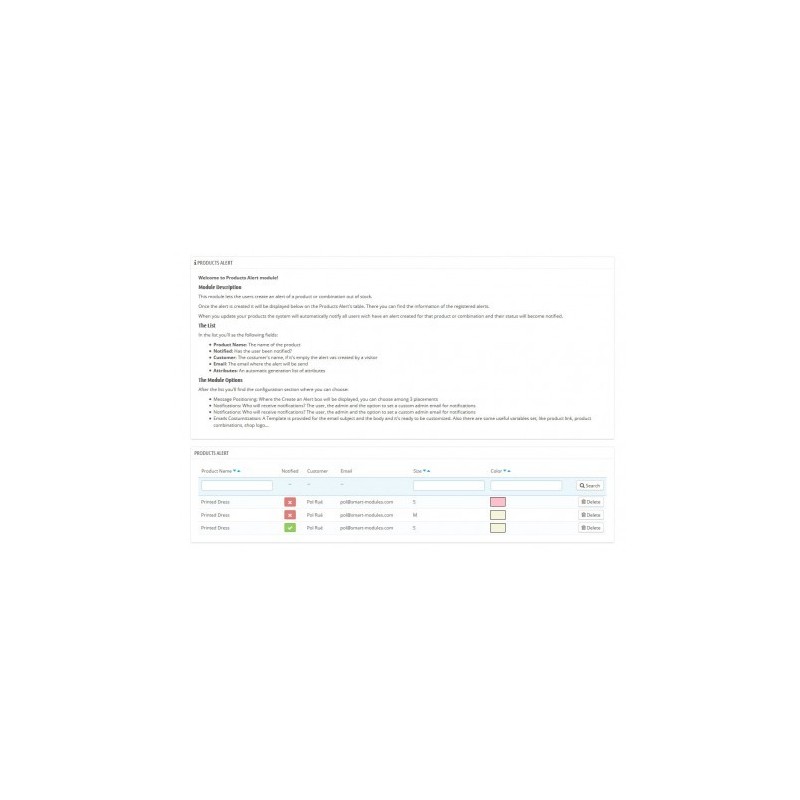
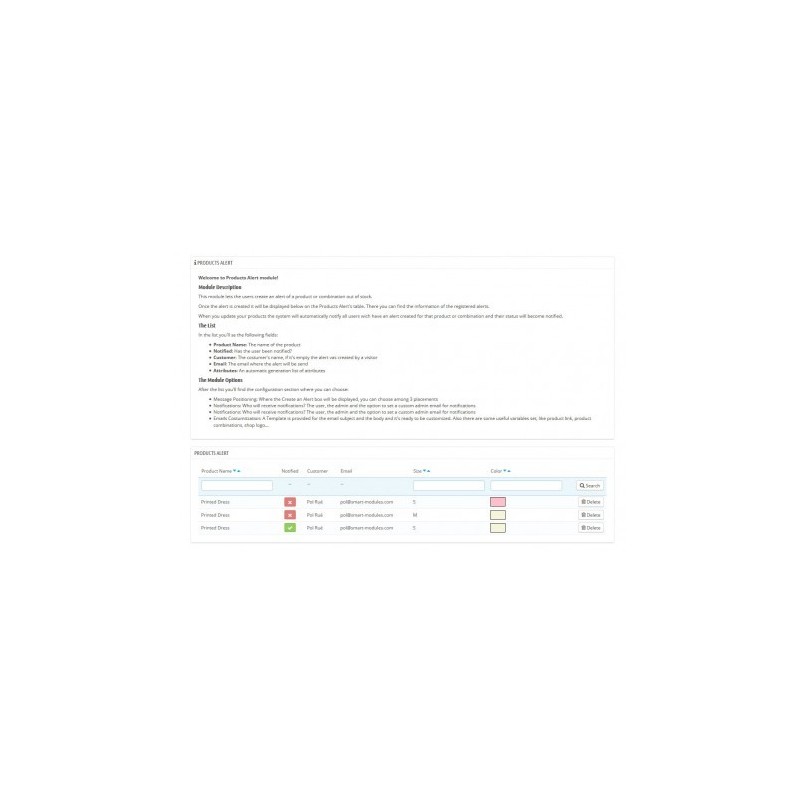
In the Back Office on the module configuration screen, you'll see a list with all the alerts, there you can switch the alert state (Notified: Yes / No), if the state is set to No when you update a product and it has stock, the new alert email will be sent.
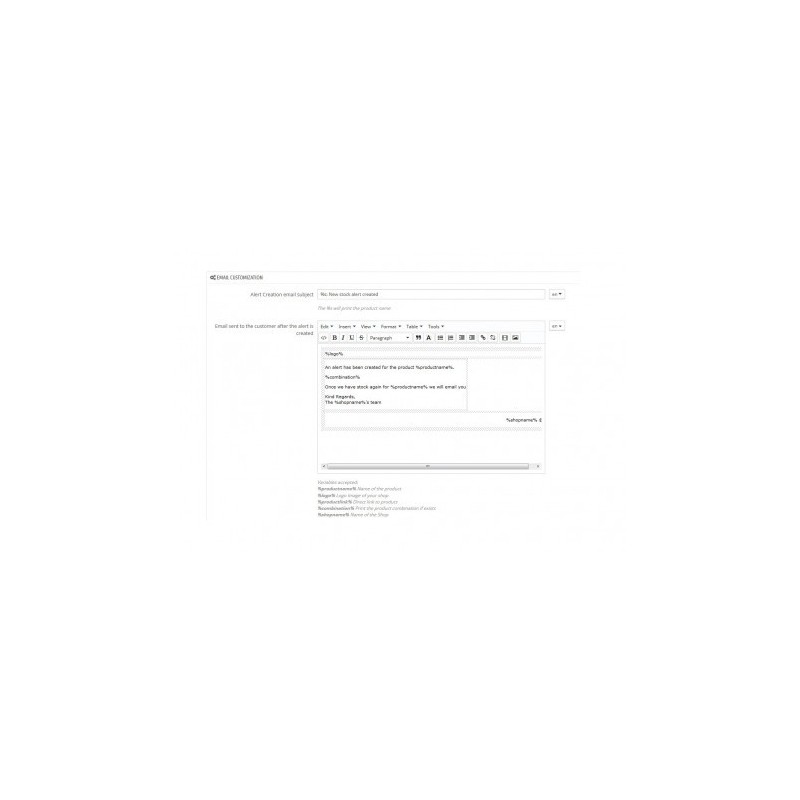
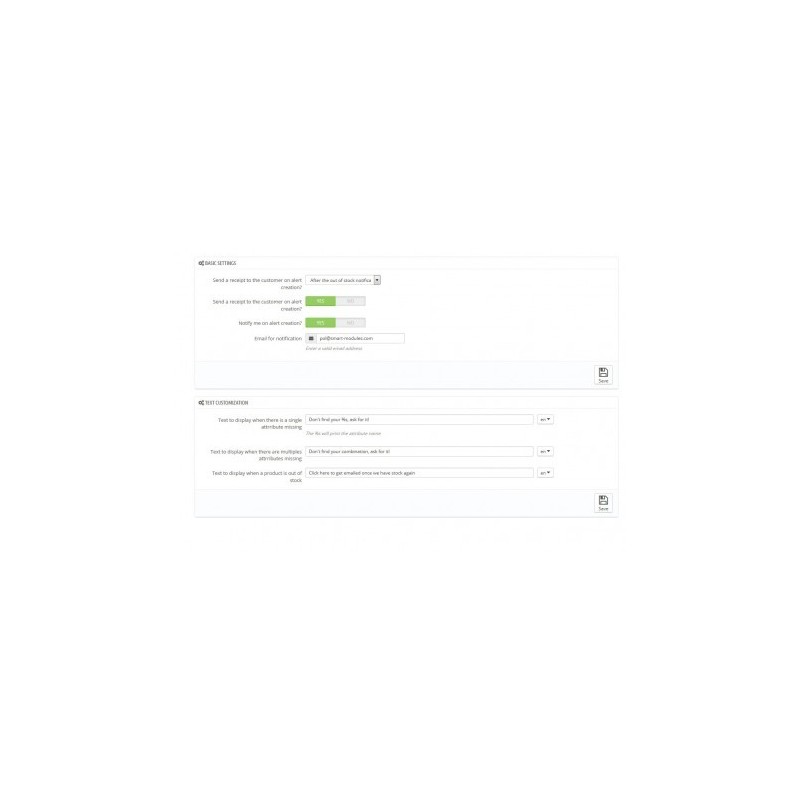
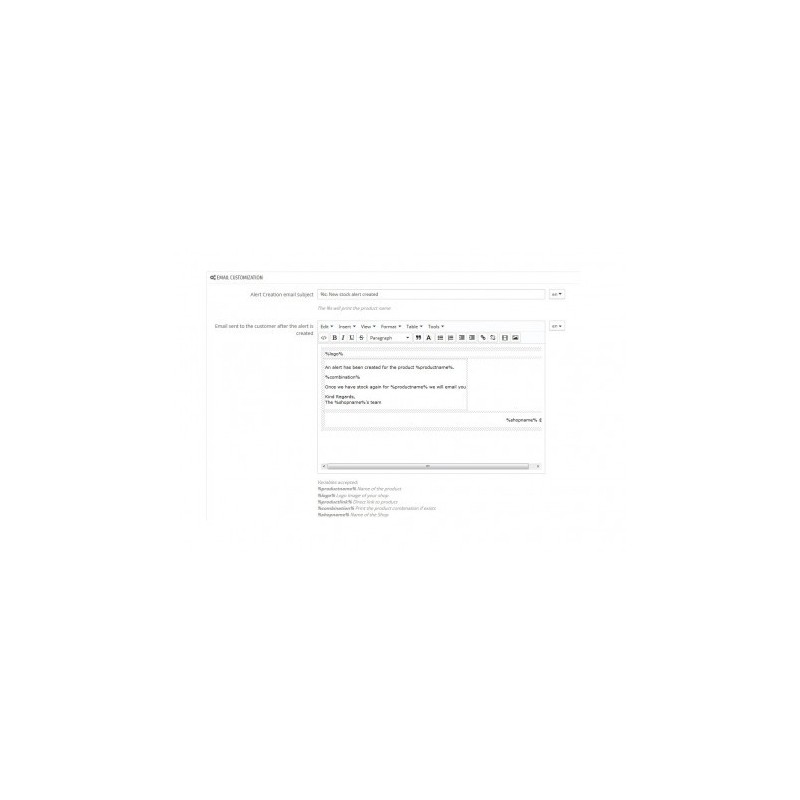
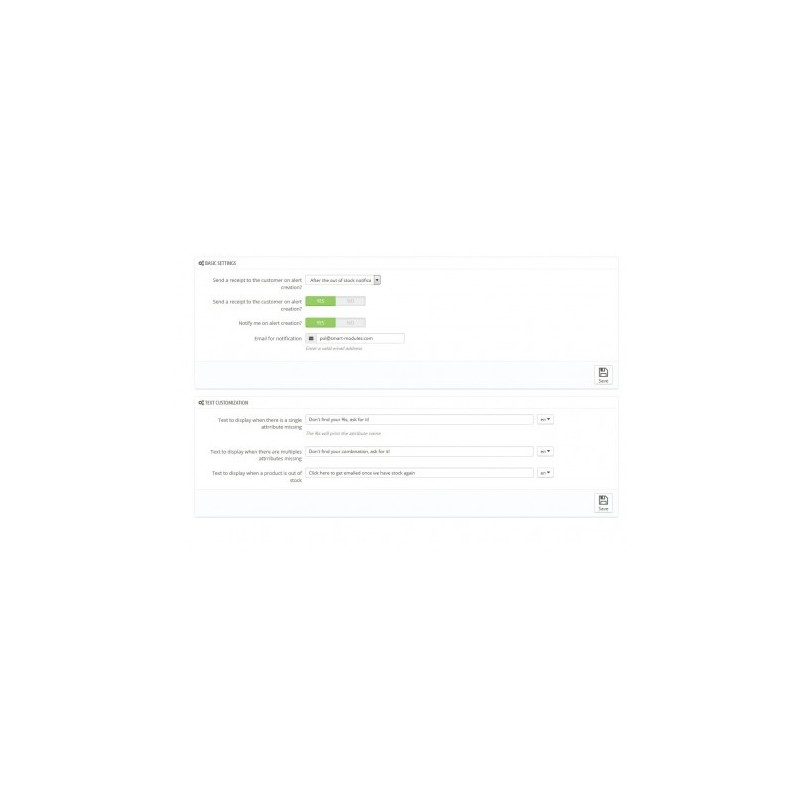
You can configure where to display the alert box, who will receive notifications, an alternative E-Mail for admin notifications, the messages displayed on the Alert Box and the subjects and bodies of the emails sent by this module. Also variables are set in an E-Mail template edition to make it easier for you.
- Highly customizable: Customize the emails, the subjects, the text, the box position, the alerts...
- Email variables: To make it easier for you to build the templates
- Ease of use: In the moment when you install the module it's already working without even having to modify or configure anything, of course you can personalize it.
- Manual included: Read the basics anytime you want
- Fast Support: Like always, Smart Modules offers fast support from Monday to Friday from 08:00 to 16:00 GMT+1
Customers will view the Product alert box and invite them to create an alert, keeping them in touch with you. And letting them know when a product they want is back in stock again.
Add the module to your shop
Click Install and enter the module configuration page
Check the settings
To translate the templates:
1 Go to Localization > Translations
2 Select email templates
3 Choose your theme
4 And the language you want to translate
The module has the templates translated in more than 10 languages. But for those who don’t it will copy the templates from the English language.
You are welcome to send us your thoughts, features requests and anything that may help up improve the module.
Contact us for quick installation and configuration support.
Monday to Friday from 08:00 to 15:00 GMT+1