Knowing which campaigns bring sales is the only way to control what you spend on Google Ads.
The Google Ads Conversion Tracking module adds the Google tag (gtag.js) to your shop and sends each order to Google Ads as a purchase conversion, with its value, currency and order ID.
It works like our Pixel Plus module does for Meta: the sale is registered the moment the order is created, and the conversion is sent on the next page the customer visits. It does not depend on the order confirmation page, so orders paid with modules that redirect elsewhere or skip the standard confirmation step are also tracked.
FEATURES
Google tag (gtag.js) on every page of your shop, the base Google Ads needs for conversions and remarketing audiences.
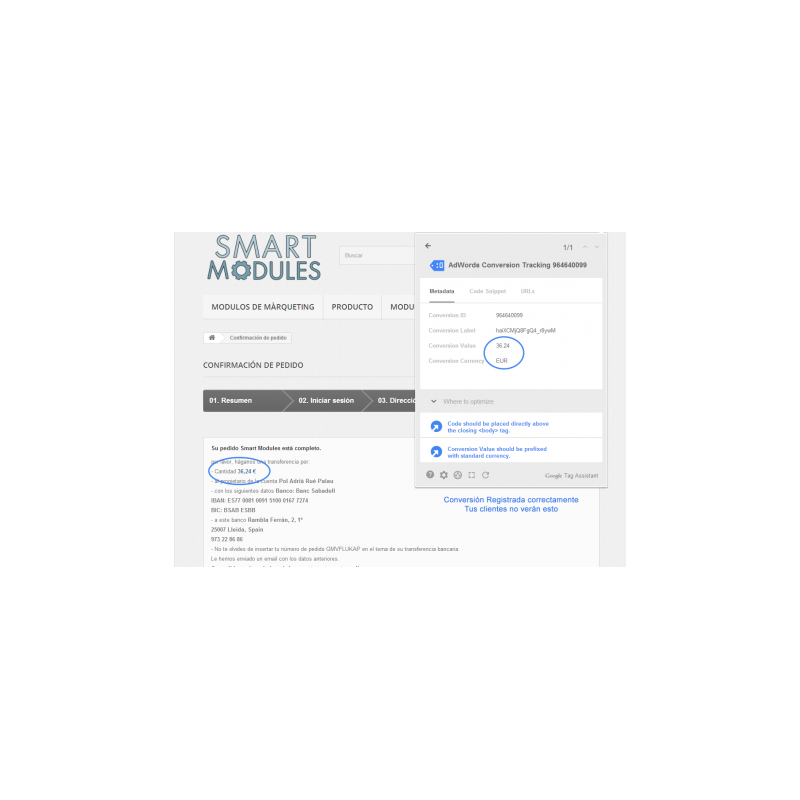
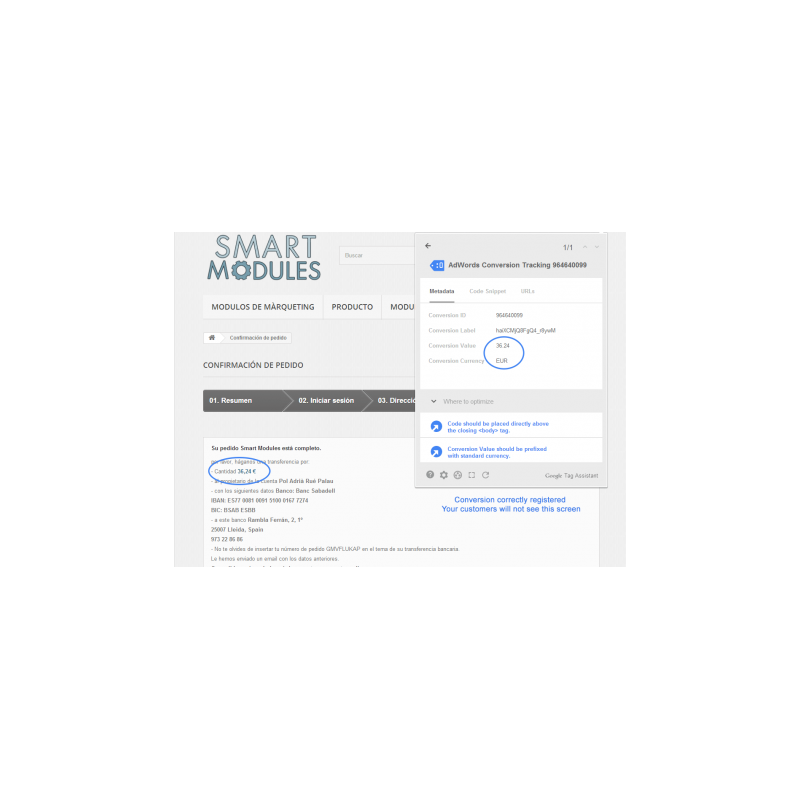
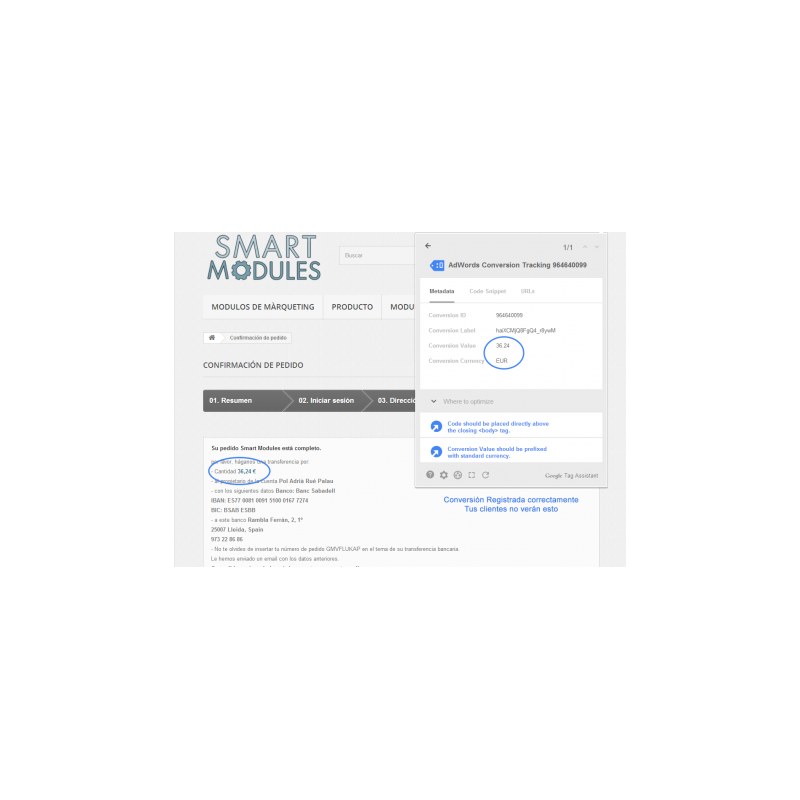
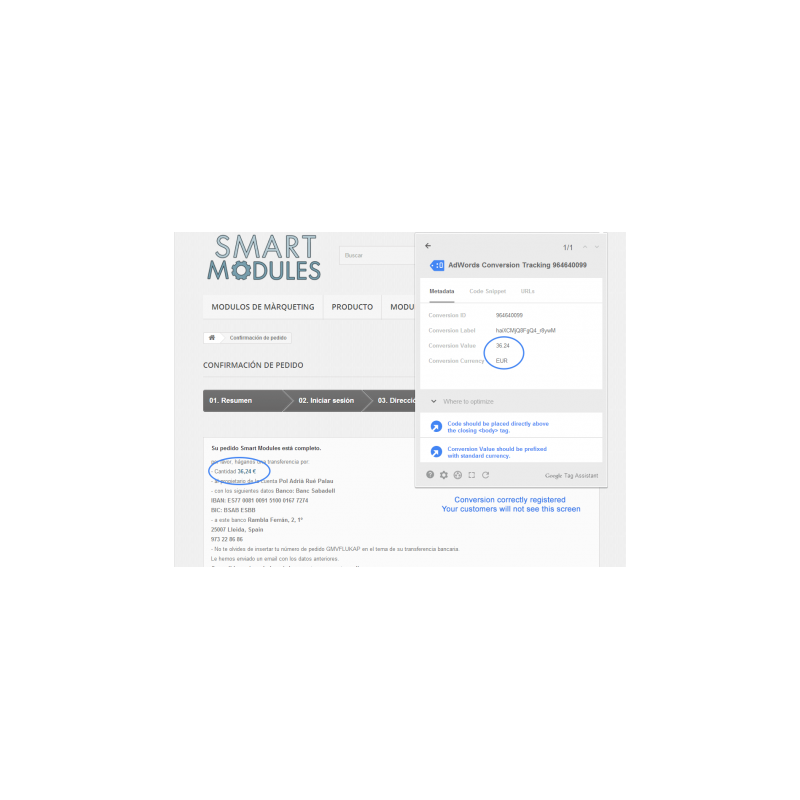
Purchase conversions with full data: order total, currency and order ID (transaction ID), so Google Ads reports the real revenue of each campaign.
Independent from the confirmation page: the conversion is fired on the next page the customer visits after the order is created, compatible with payment modules that do not use PrestaShop's standard flow.
No duplicate conversions: each order is sent once, and the order ID lets Google Ads discard repeats.
Compatibility mode for payment modules that redirect the customer, sending the conversion without waiting for any extra request.
Enhanced Conversions (optional): sends the customer's email, phone, name and address hashed with SHA-256, as Google requires, to improve conversion measurement. Enable it only if you collect marketing consent.
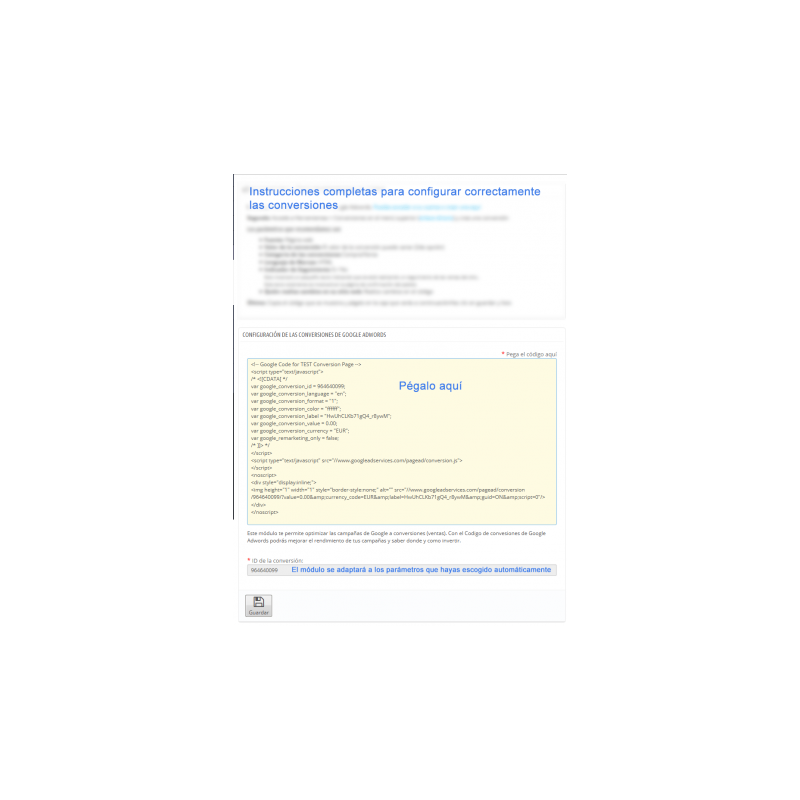
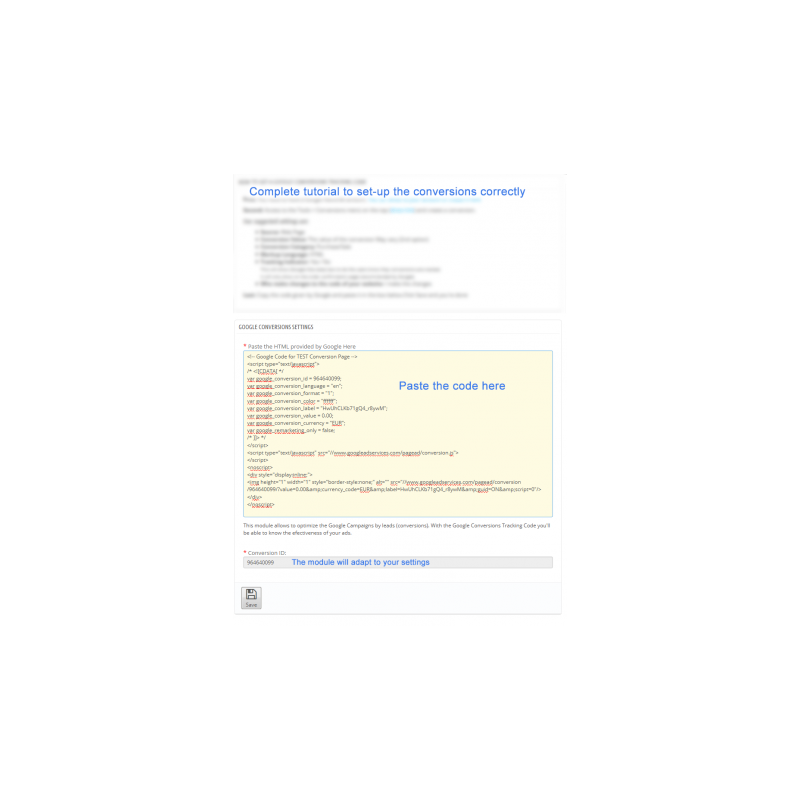
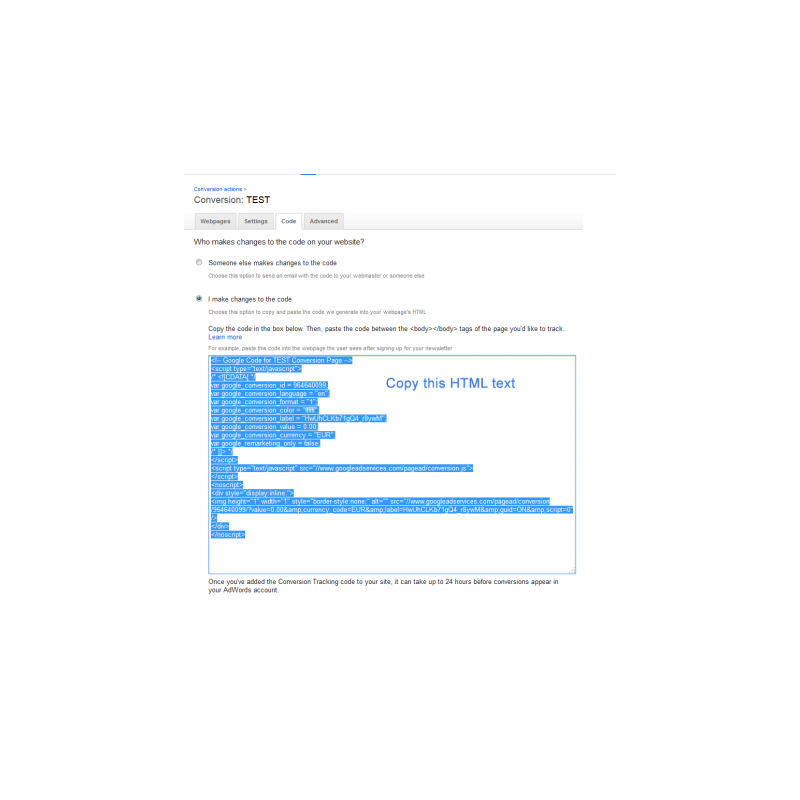
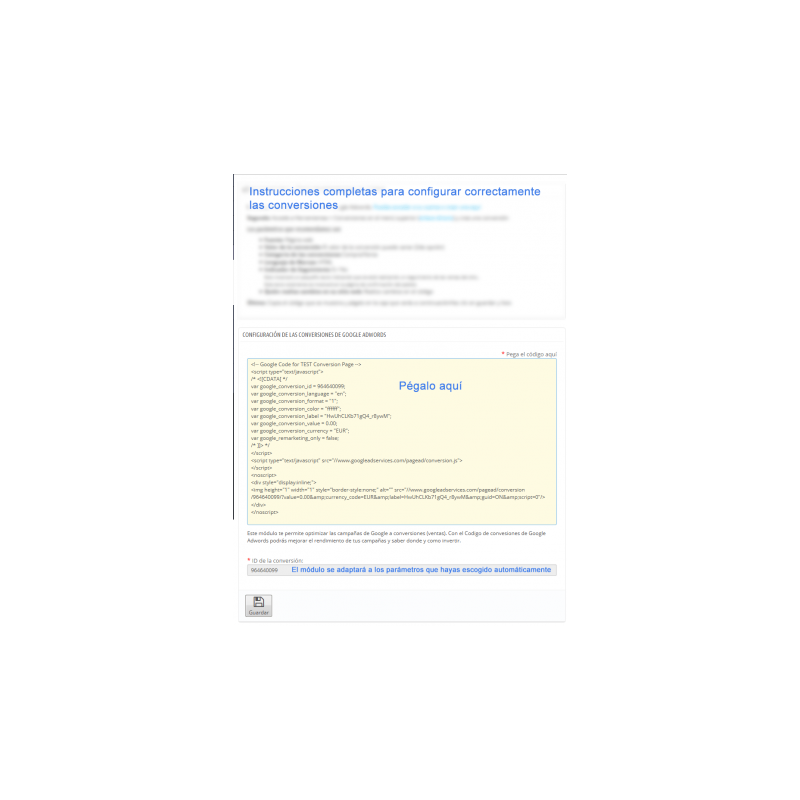
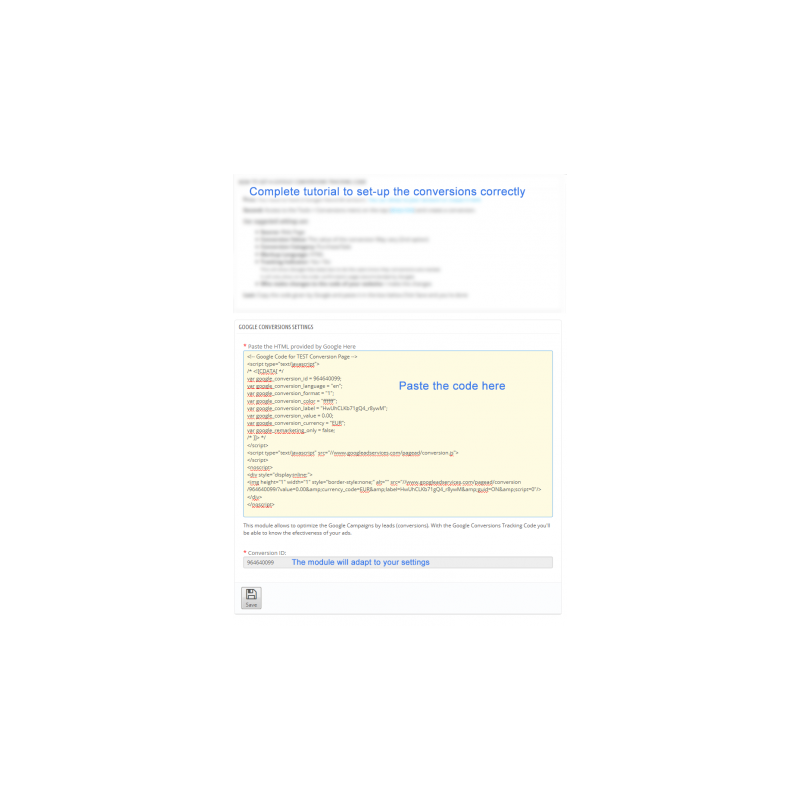
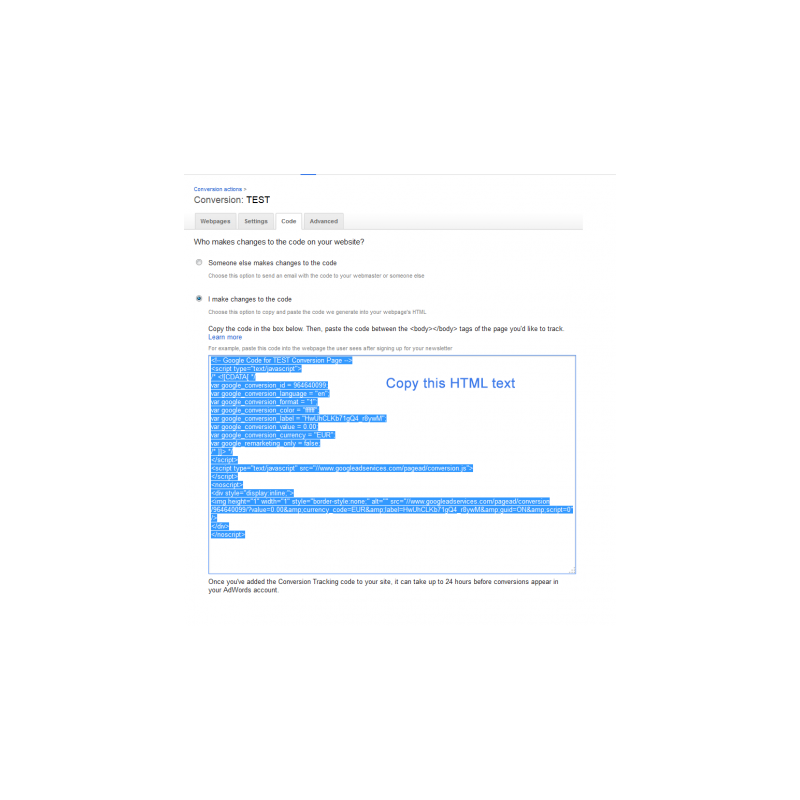
Quick setup: paste the conversion snippet from Google Ads and the module extracts the Google Ads ID and the conversion label automatically.
Debug mode to check in the browser console what is sent to Google Ads.
INSTALLATION
• Install the module.
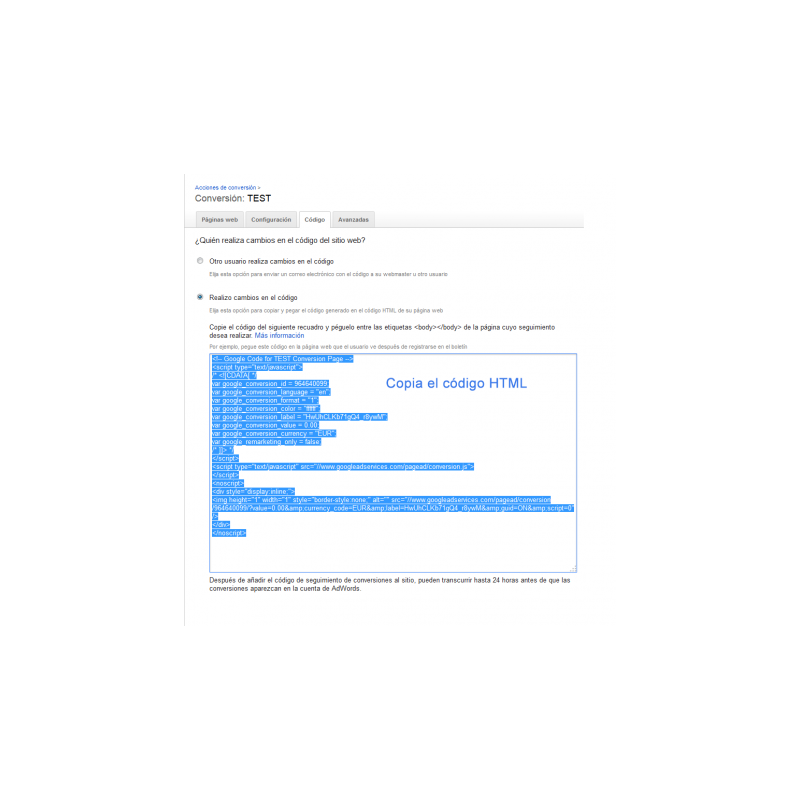
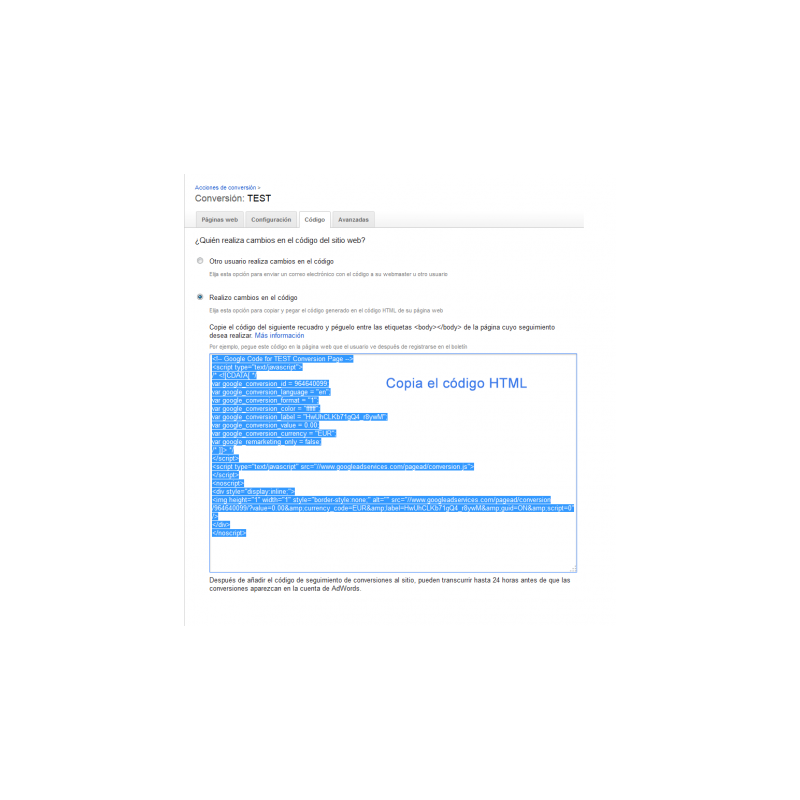
• In Google Ads, create a "Purchase" conversion action and copy its event snippet.
• Paste the snippet into the module configuration and save.
• Place a test order and check the conversion in Google Ads (it can take a few hours to appear).
COMPATIBILITY
PrestaShop 1.6, 1.7 and 8.
 English
 Español
 Deutsch
 Italiano
 Polski
 Français
 Nederlands
 Русский
 Bokmål
 Português PT
 Čeština