Product Videos - YouTube, Vimeo...
Compatibilidad > 1.6 - 1.7 - 8.1

Product Videos - YouTube, Vimeo...

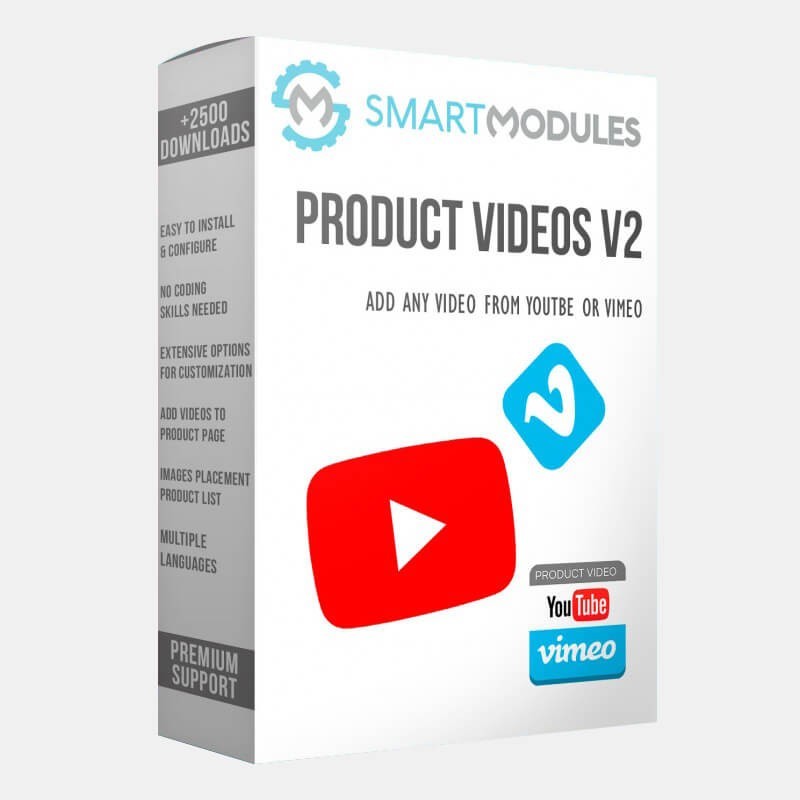
The Most Complete and flexible Video Product Module, multi-video & multi-language ready. Add videos from Youtube or Vimeo.
 
               Excellent installation and configuration support.
SmartModules
Description
With this module you can to add videos to your products through the product edit page.
 
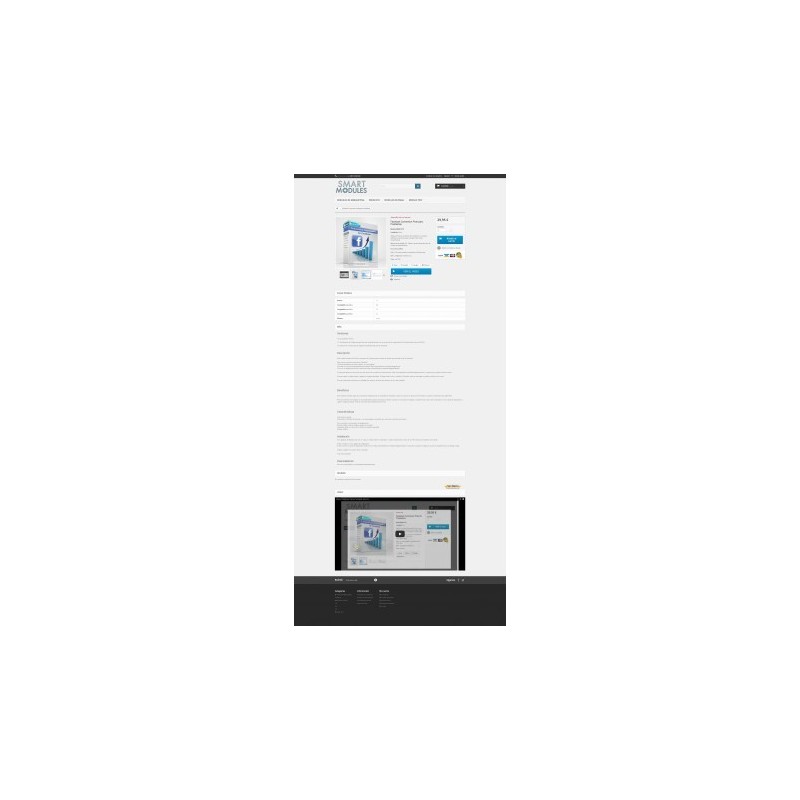
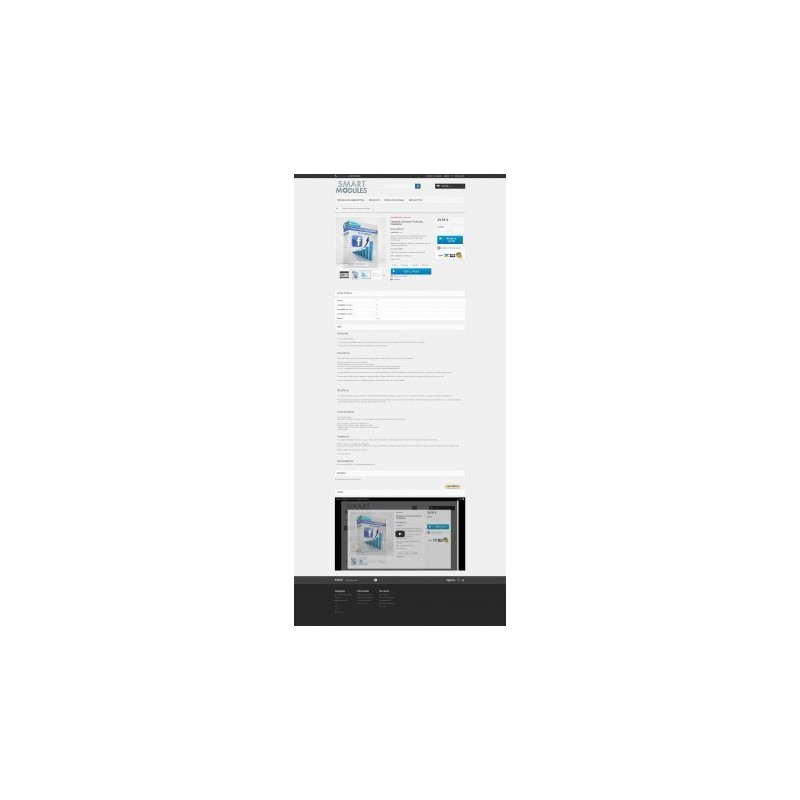
The perfected Product Video Module can offer you a more complete and flexible solution to integrate videos with Prestashop (in the product or product list views). With our module you can choose between 5 placements where you can show YouTube and Vimeo videos
 
Those placements are:
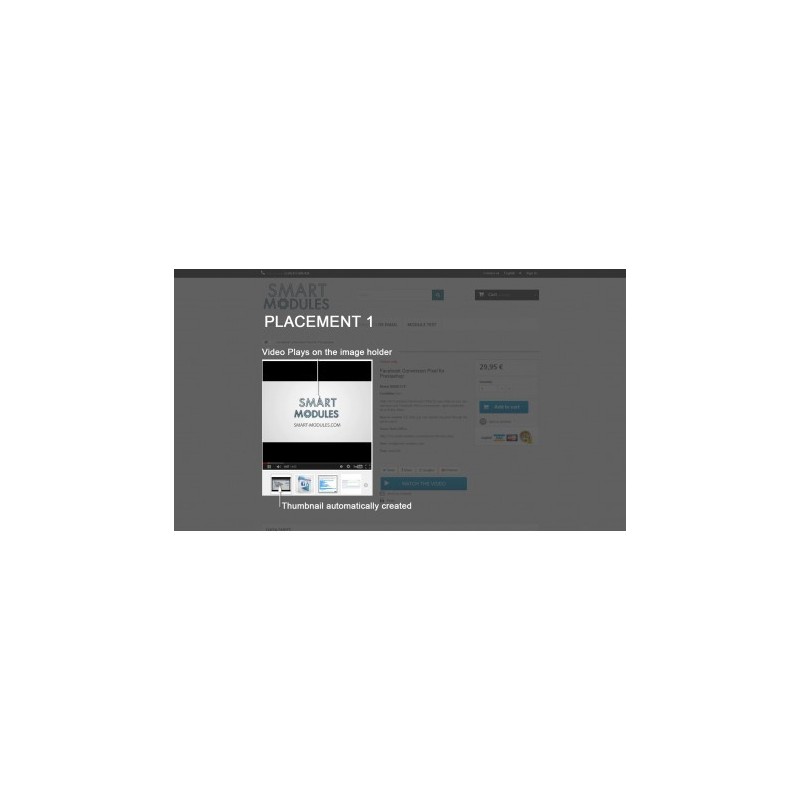
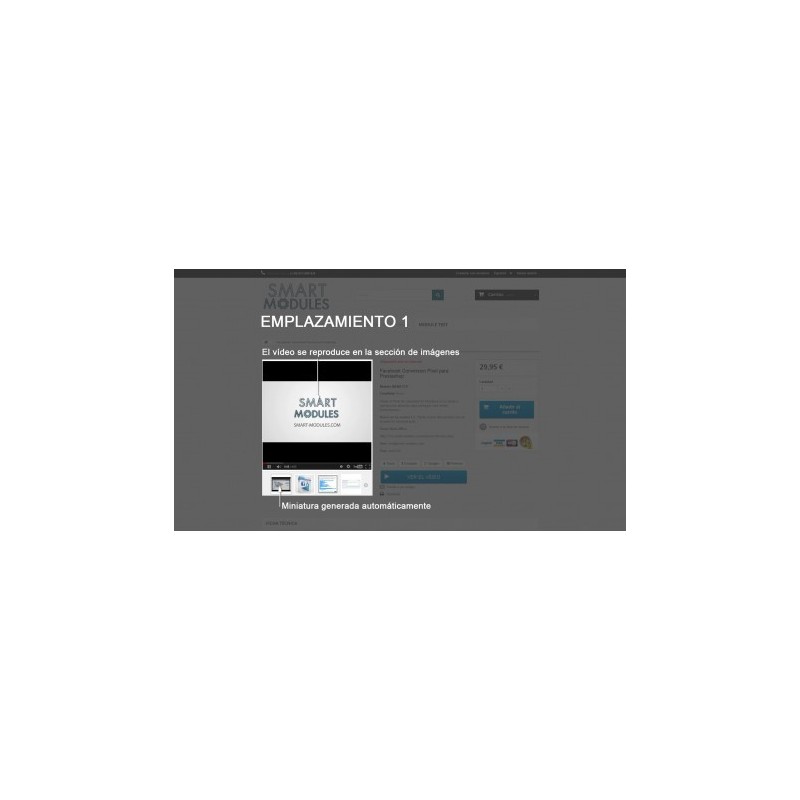
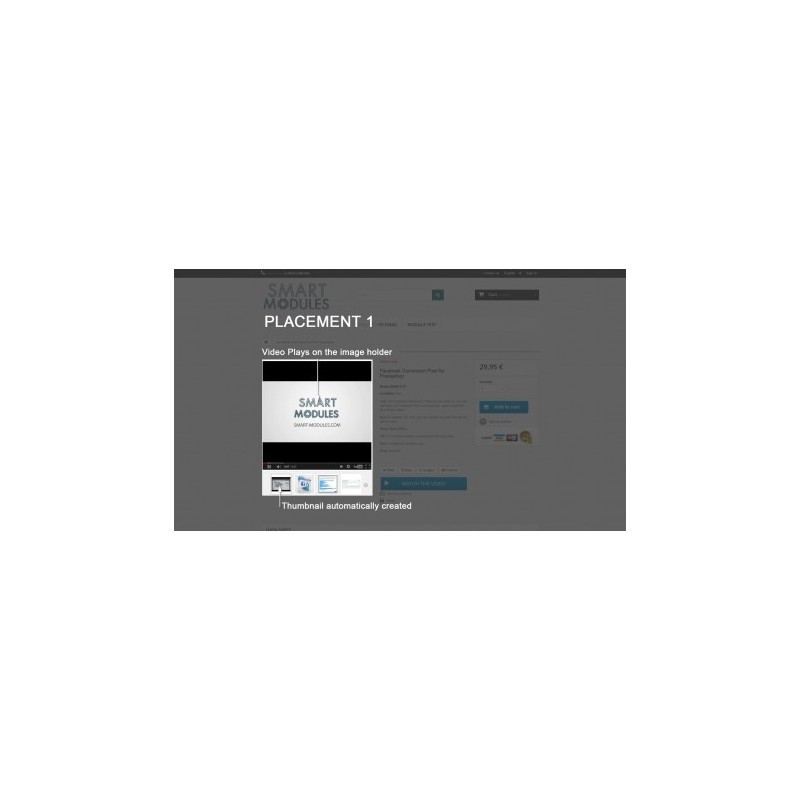
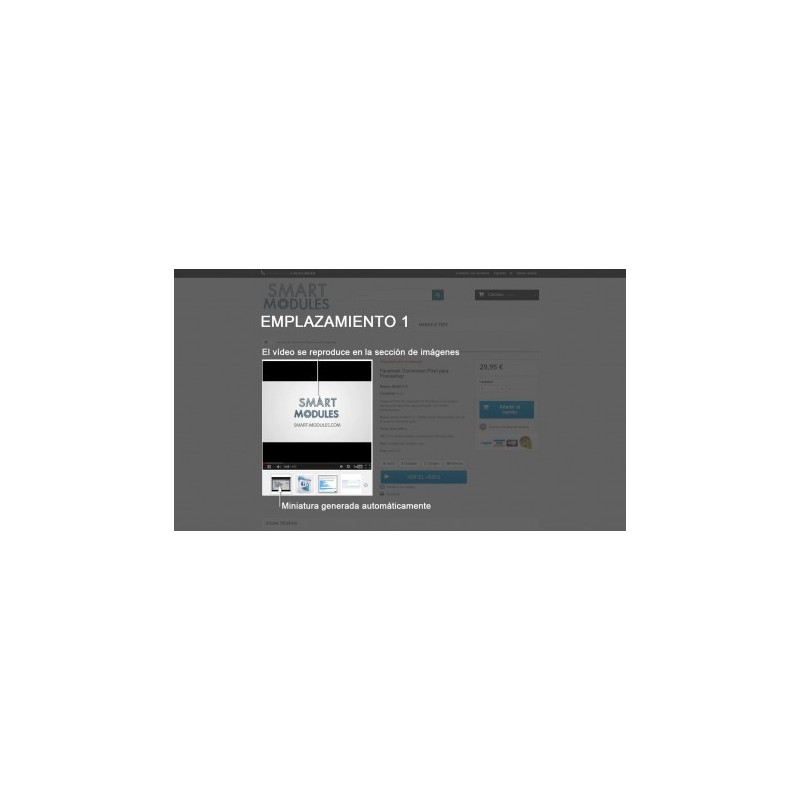
- Product Images
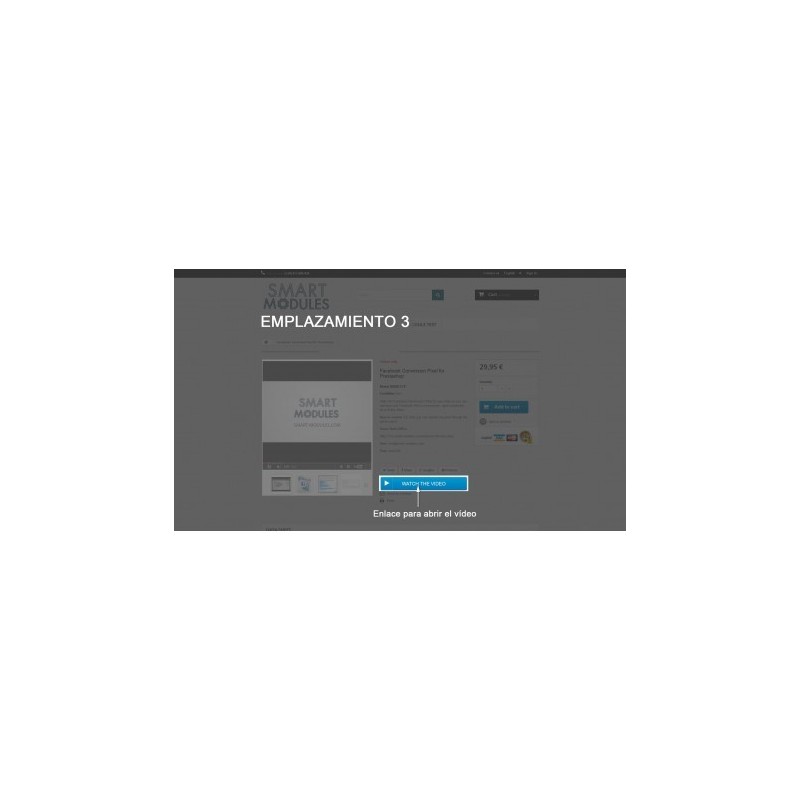
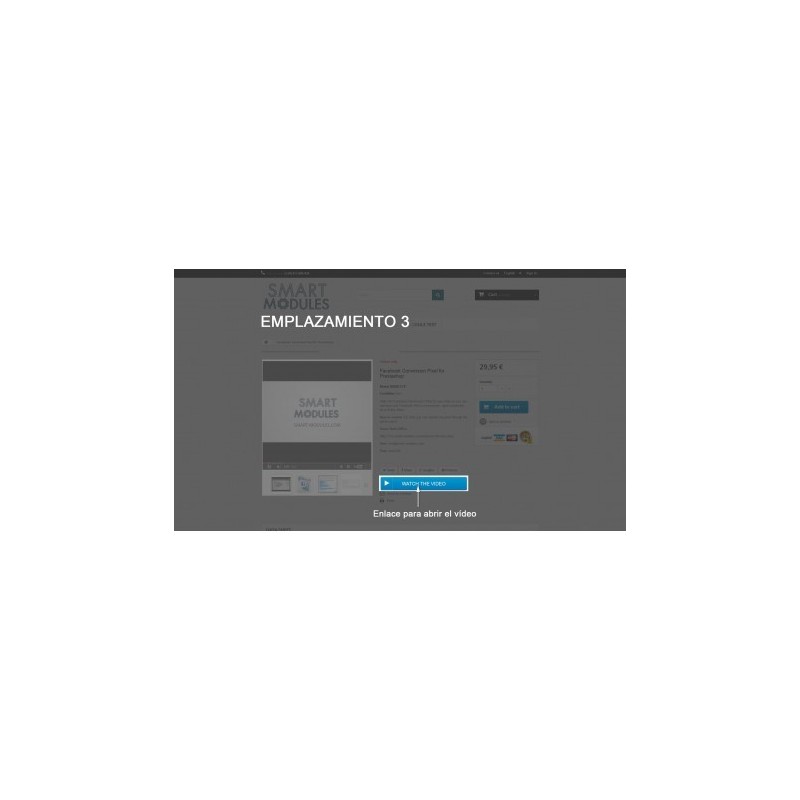
- Product Sidebars (between the “short description” and the “add to cart” button)
- Product Footer
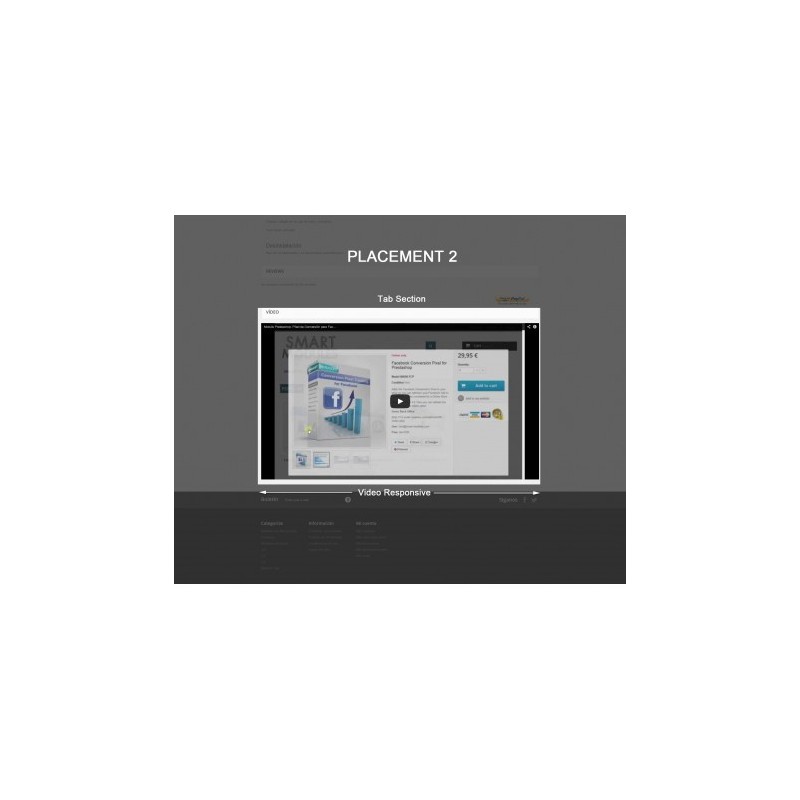
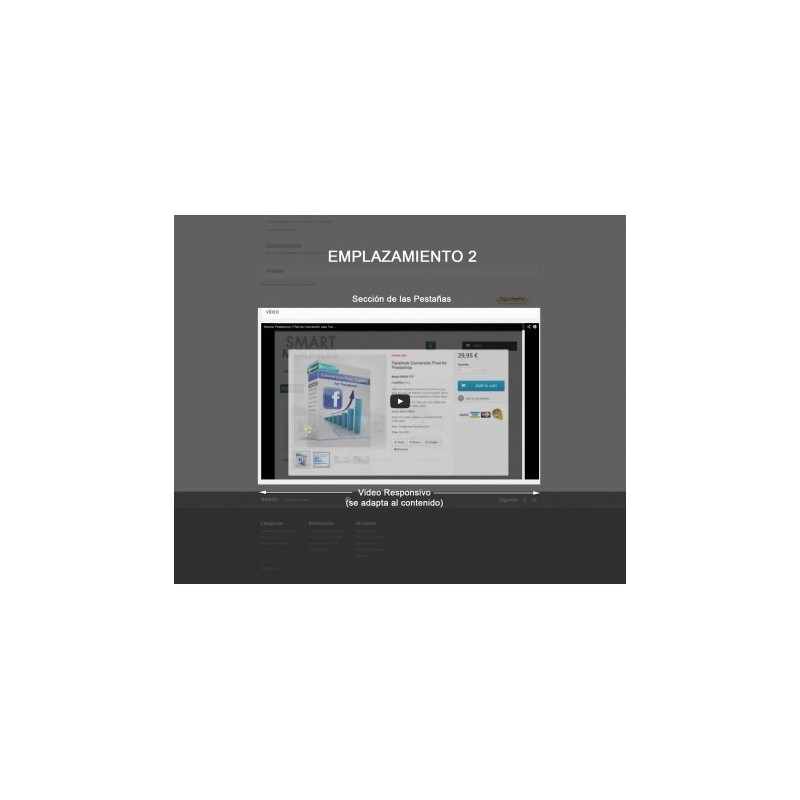
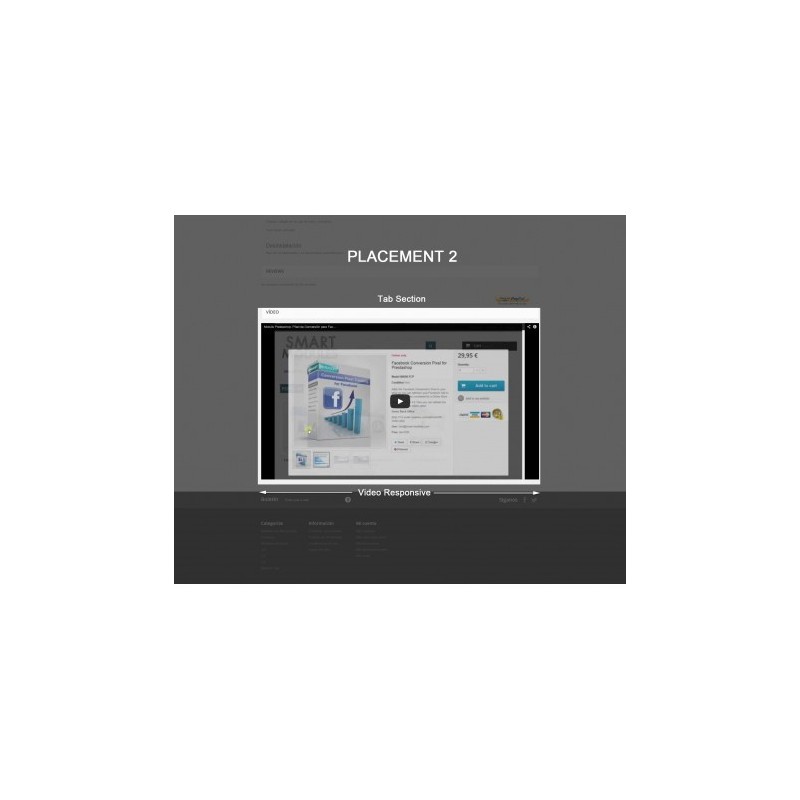
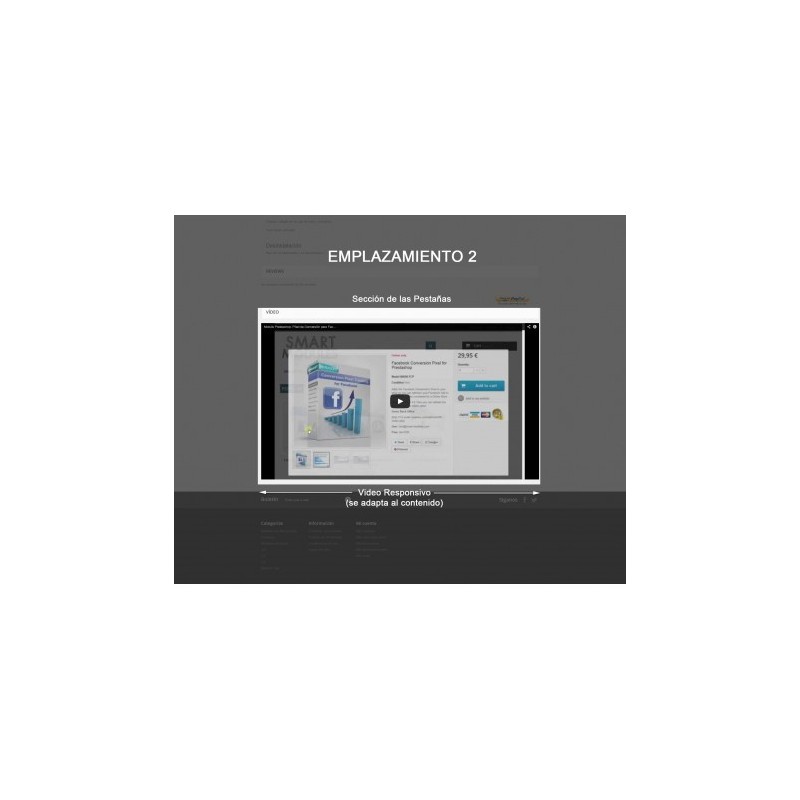
- Product Tabs
- Product Lists (Homepage, Categories, Search...)
Exclusive placements for 1.7 versions
 
Perfect for almost every site.
 

What’s new?

Configuration Page. These features have been added:
- A tabbed menu for faster module navigation
- Customized options for Vimeo
- Import / Export Features
- More adaptation options, like support for vertical product thumbnails
 
Videos on Product Listing
- Live video preview
- Button to show videos as a Pop-Up
-Highly customizable. More than 140 possible combinations
- 5 additional settings to customize the function of videos in the product listing
 
Product Edit Page
- Copy videos: You can copy videos from other products, and use those for similar or duplicated products.
- Add multiples languages to your videos: Copy the video URL and select the languages to add.
- Delete product videos
 
Product Page
Product sidebars. Now with more available options like, displaying an embed or a thumbnail list, show a title above the video, format it...
 

Why should I use videos to promote my product?

Videos give a much more realistic view of your product to customers. This will increase your conversion rate, as well as customer confidence in your web shop.
 

FEATURES:

• Show videos on your product page
• Show Videos in the Image Holder
• Flexibility
• Adaptability (Now it's easier to adapt to non-standard Prestashop themes)
• Automatic thumbnail creation and image integration
• Sortable videos
• Multilanguage
• Multivideo
• Multiple placements possible (up to 4 at the same time)
• Responsive
• No coding required
• Works with YouTube and Vimeo videos
• Excellent customer Support (almost 5 stars!)
 

CUSTOMERS:

Customers will see your product videos perfectly integrated with your shop, making it more likely to they will buy something from you.
 

INSTALLATION:

Go to Modules > Add New Module. Choose the zip and hit install.
 
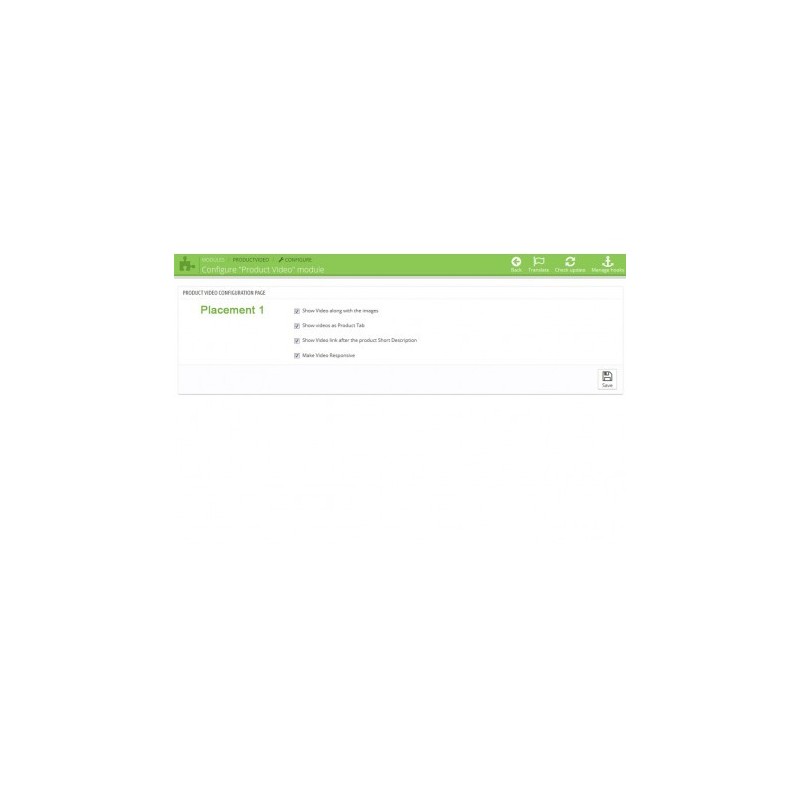
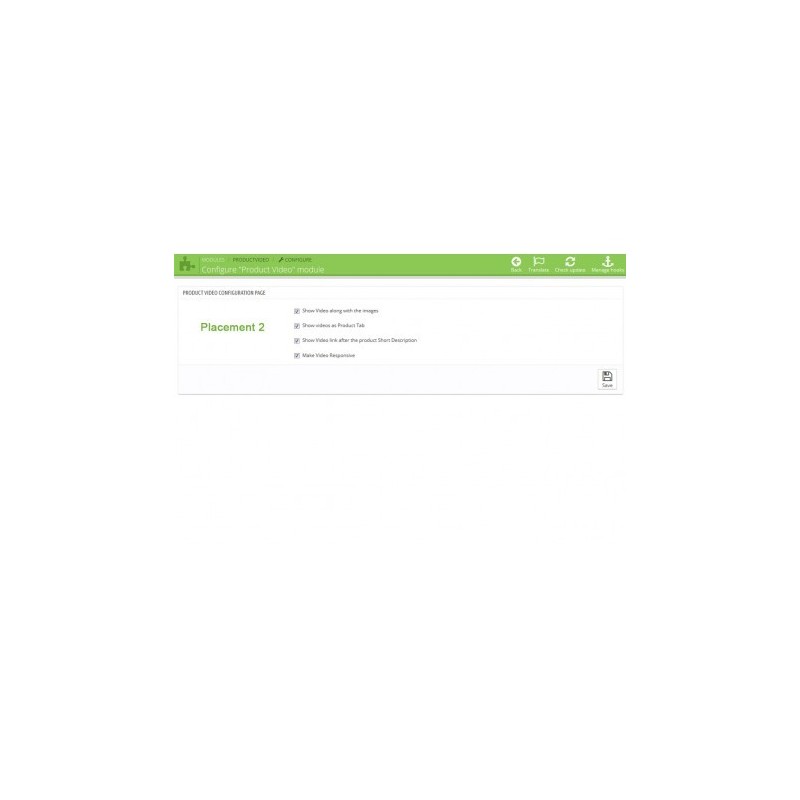
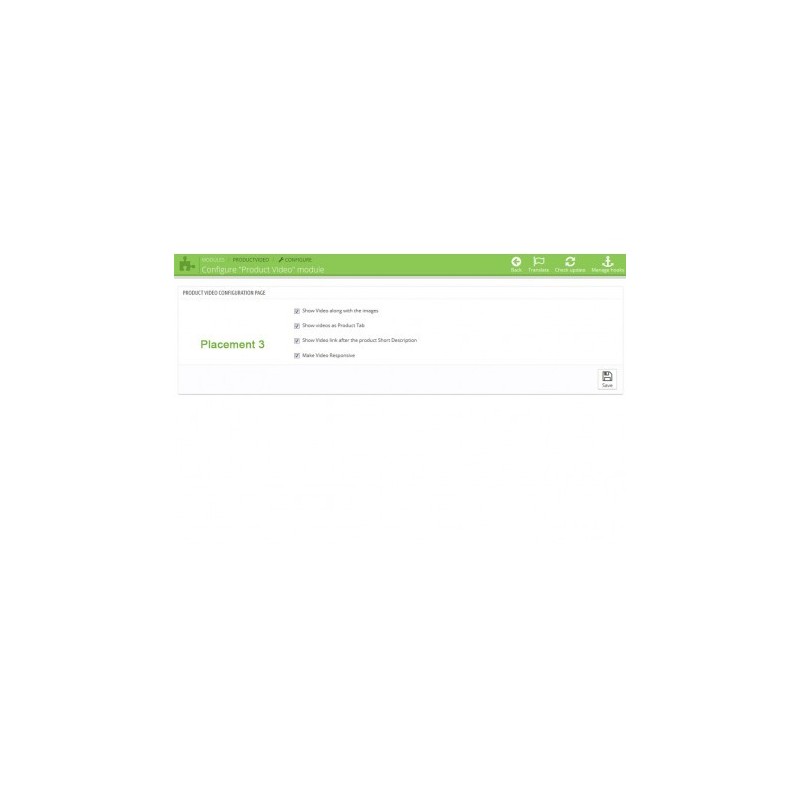
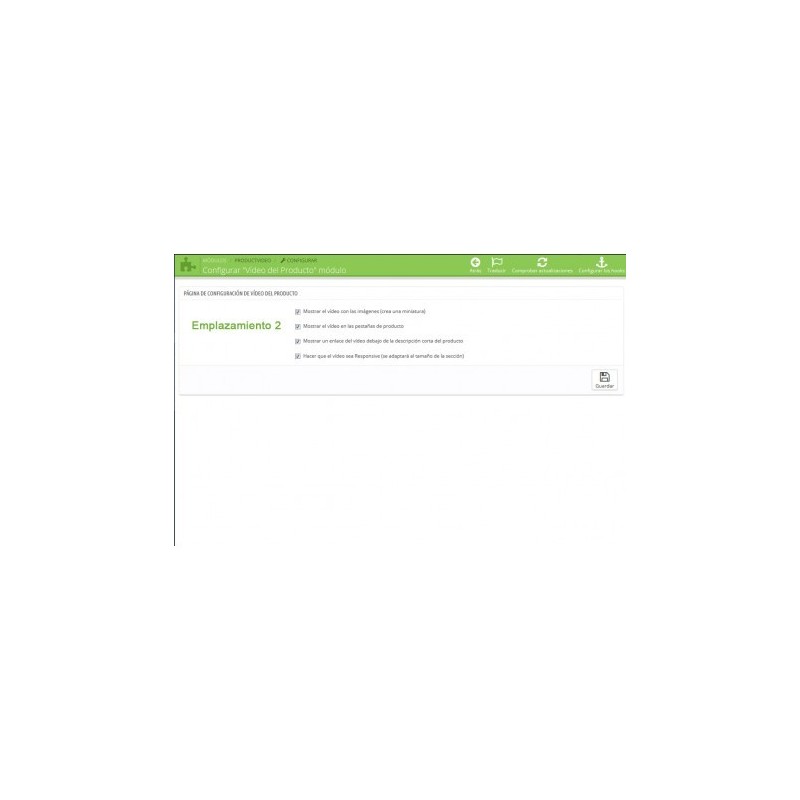
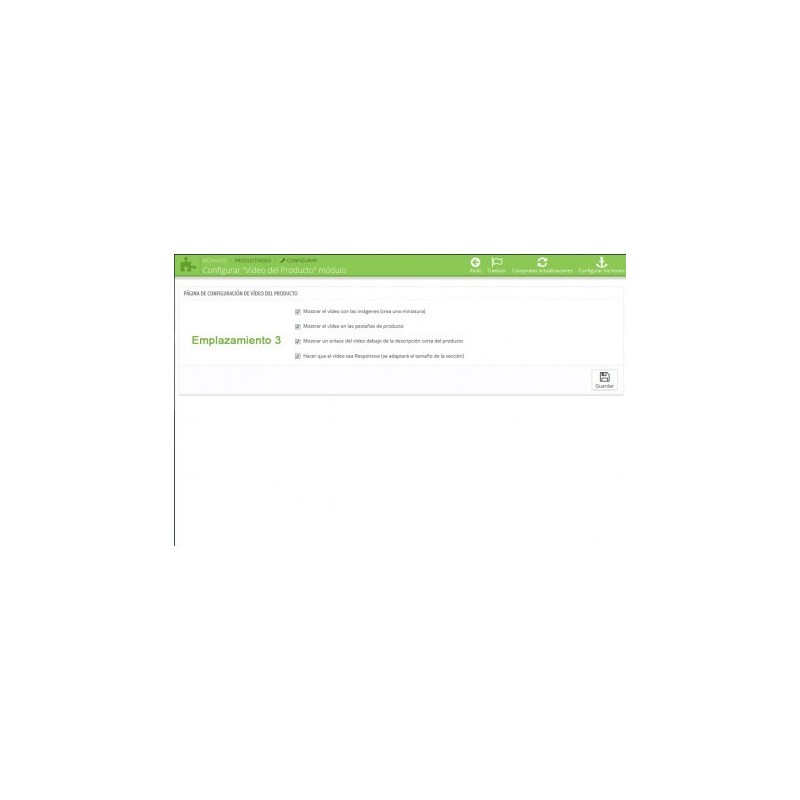
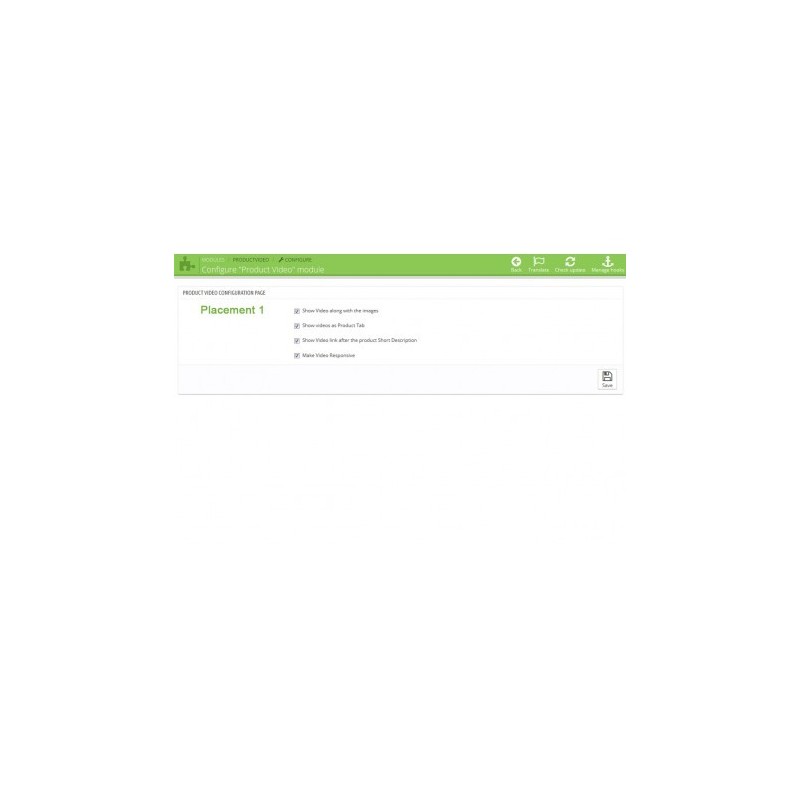
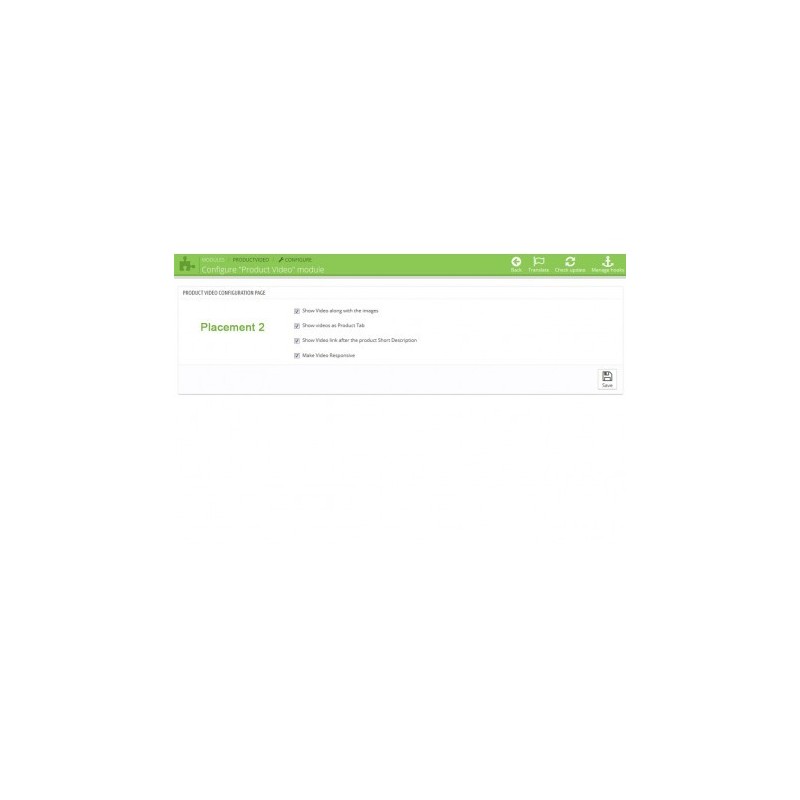
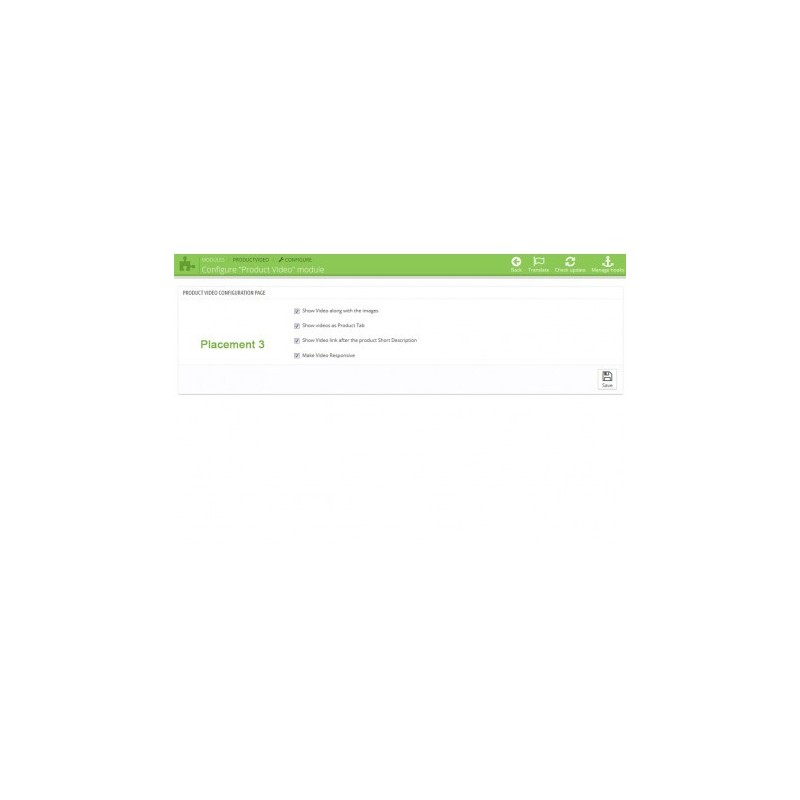
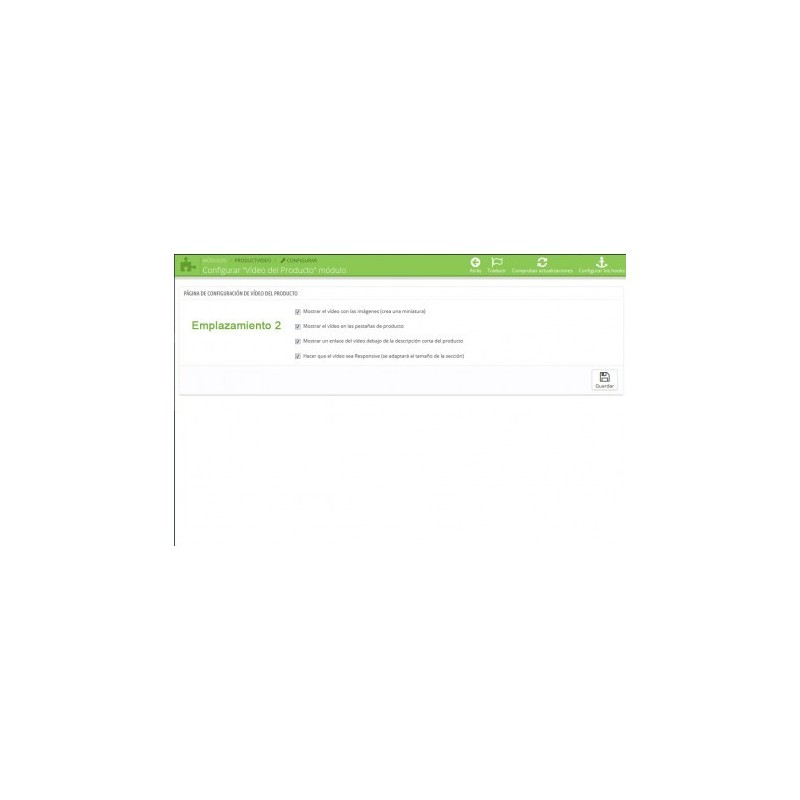
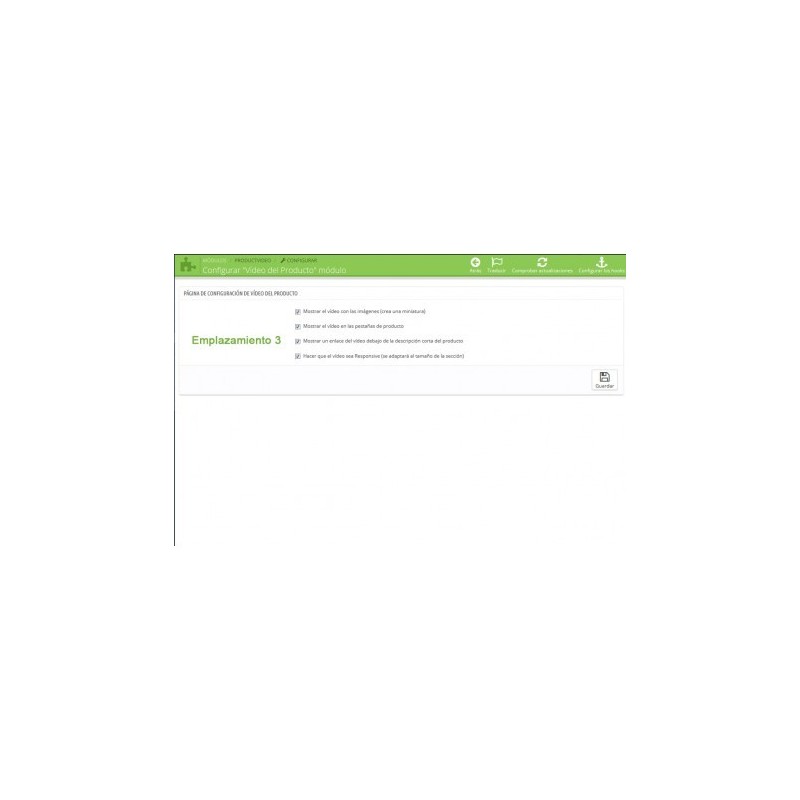
Now activate the module and go to the configuration page. Here you can easily set the general settings of the module and fit these to your needs.
 
Add videos:
Individual:
Go to products -> Edit a product -> Product Video Tab
Select one of these three options:
• Copy other videos
• Add a video to all/some languages
• Add a video for each individual language
 
Save and you're done.
 
Massive:
Go to the module configuration page and select the import / export. Now you can export videos.
Use the generated CSV file to add as many videos as you want. If there is any error during the import you will be notified.
 
Important Note:
If you are using a custom theme and the video doesn’t show, please contact us and we will help you to customize it.
https://addons.prestashop.com
 

RECOMMENDATIONS

If you wish to use the images placement and you don't see the videos is because the advanced parameters of the module needs to be configured.
 
If that’s the case, please contact us, and we will do it for you.
 

OTHER:

If you are using another provider instead of Vimeo or YouTube, please contact us!
 
Excellent and Fast Installation and Configuration Support
Fast Support from Monday to Friday (08:00 - 15:30)

Product Videos - YouTube, Vimeo...

This module lets you easily add YouTube or Vimeo videos from the product edit panel. It supports multiple videos and multiple languages. Perfect for any site.

With our module you can add videos in one or more of these locations

Product images

Main product information

End of the product description

Product tabs (versions 1.5 – 1.6)

Product listing (home, searches, categories…) (versions 1.5 – 1.6)

Positions exclusive to 1.7

What's new?

Configuration page

- Navigate the module's different sections by tabs
- Advanced options for Vimeo
- Import / Export features
- More adaptability options

Videos in the product listing (coming soon for PS 1.7)

- Live video preview
- Button to show videos in a pop-up
- Highly customizable (more than 140 possibilities)
- 5 additional options to customize how the product listing works

Product edit page

- Copy videos: easily copy videos from other products.
- Add multi-language videos (add a video directly to several languages)
- Delete videos

Product page

- More options for placing product information (video thumbnail list, embedding the first video…)

Why put videos on my products?

Product videos noticeably increase sales because of the realism they give shoppers. When we shop, we form a mental image of the product, and a video gets us much closer to the real thing, which improves the conversion rate.

Features already available

To display the video you can choose from 5 locations, which can be enabled simultaneously

• In the product images: videos will be added to the thumbnails as if they were images.
• Use the video as the featured image (when the product opens, the video is shown in the images area)
• Autoplay, only for YouTube videos and now Vimeo too
• Video limit: you can limit the number of videos shown in this section.
• In tabs / End of the product: shows a video or a player (if there is more than one) at the end of the product or in the tabs (if the theme supports it).
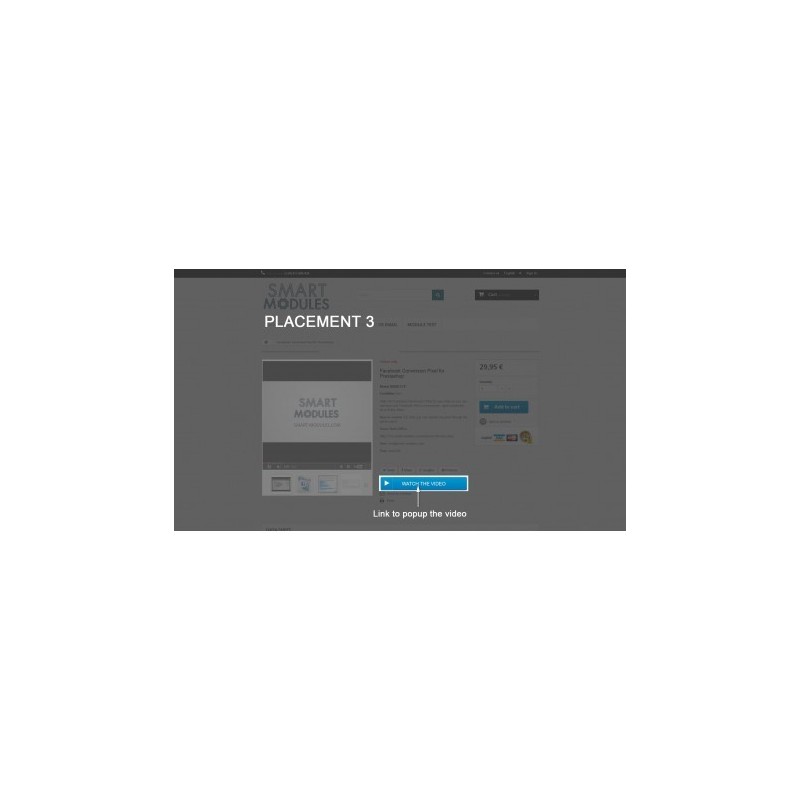
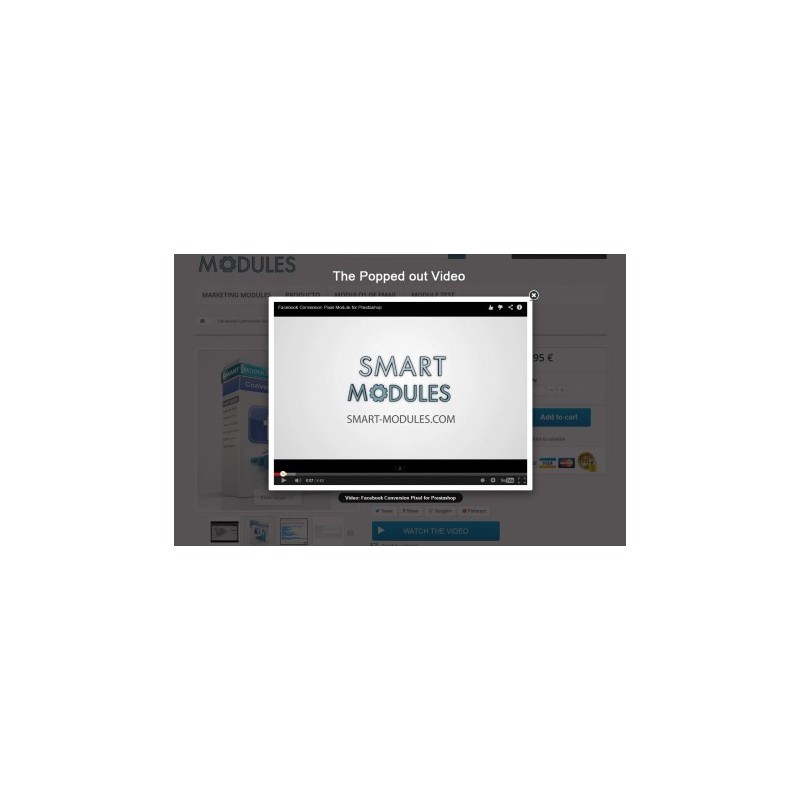
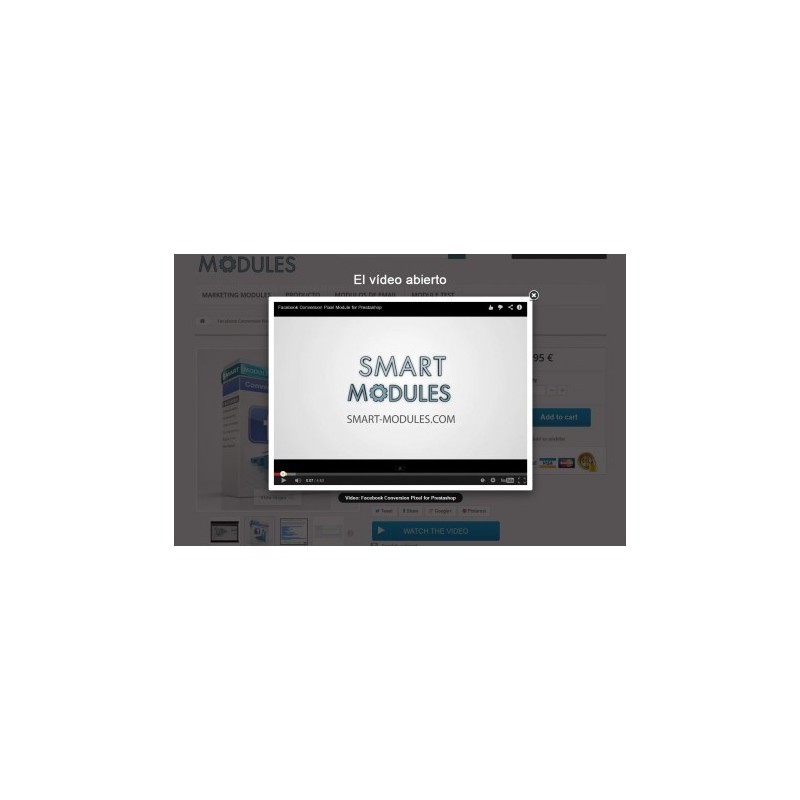
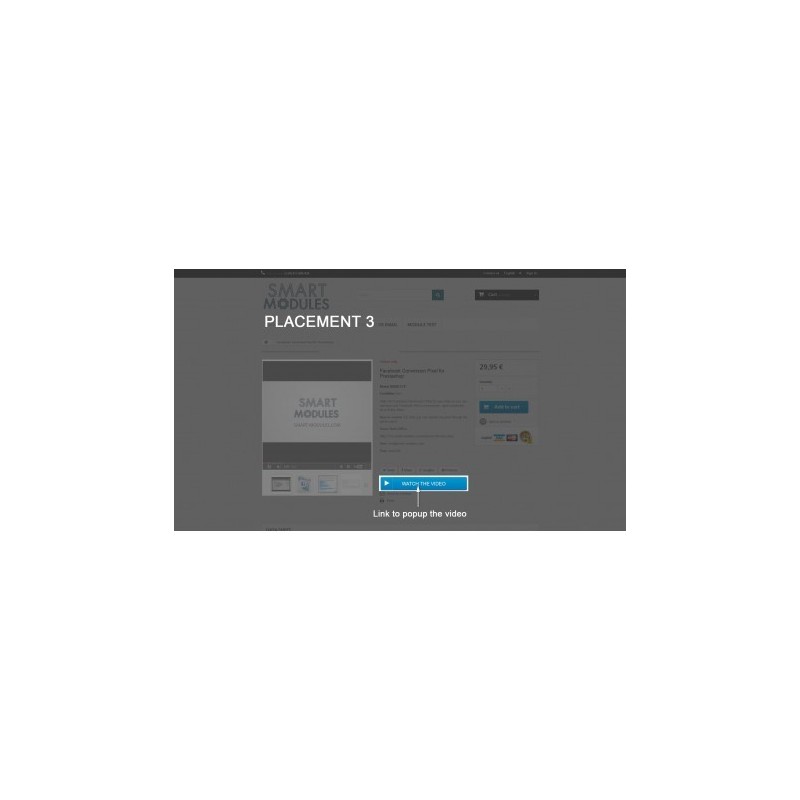
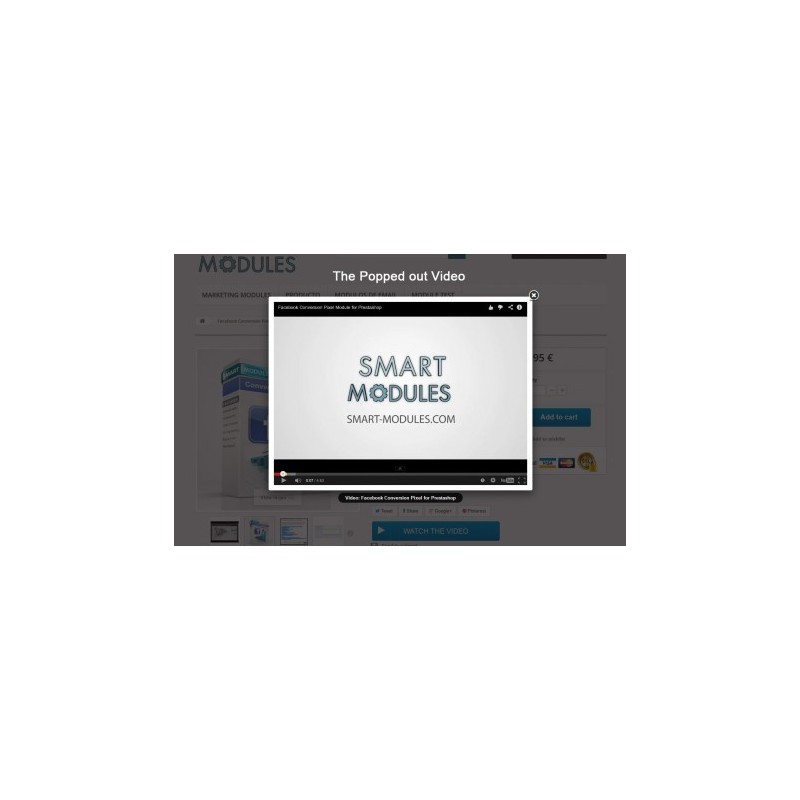
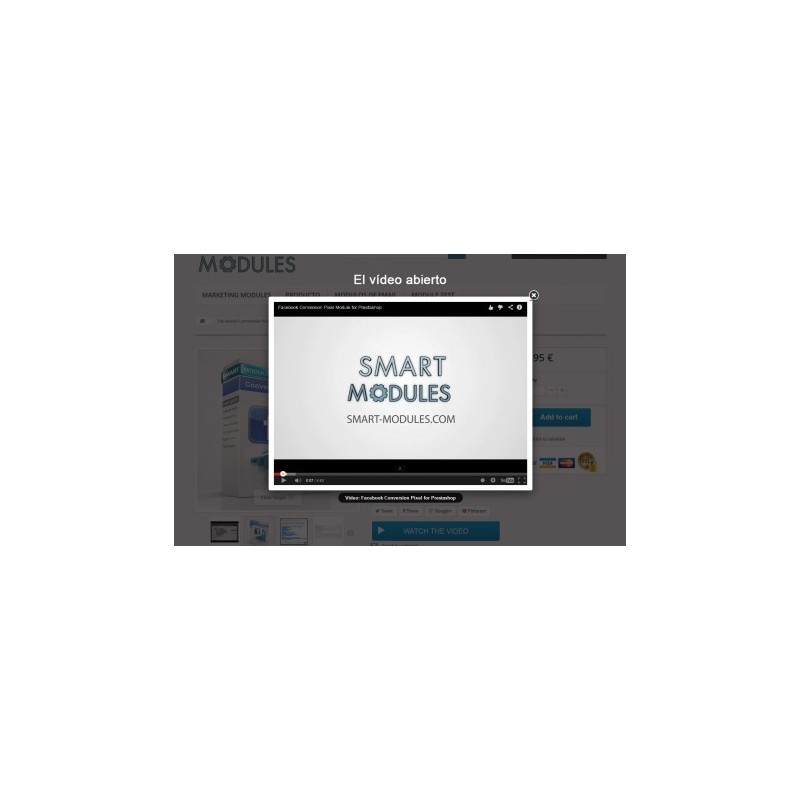
• In the left / right column of the product page: a link that opens the video without leaving the page. Product thumbnails are shown, and clicking them opens a pop-up to play the video.
• In the product listing: with two solutions implemented, one for tablets and mobile phones and another for desktops and laptops. With more than 140 possible display combinations.
• Customization and adaptation: multiple options added in all sections of the module.
• Import / Export videos: to improve productivity

Features

Easy to configure

Lets you show videos on the product page: choose from 5 available locations

Lets you include videos in the product listing

Option to show videos in the images area (integrated with the images)

Adaptability (it is now easier to adapt the system to non-standard themes)

Automatic creation of video thumbnails to integrate them with the images

Sortable videos

Multi-language

Multi-video

Responsive

No programming knowledge required

Works with YouTube and Vimeo videos

Advanced options for YouTube and Vimeo videos

Advanced options for perfect synchronization with your theme

Excellent customer service (almost 5 stars!)

Customer benefits

Your customers will be able to watch product videos, getting a greater sense of realism and becoming more likely to buy.

Installation

Go to Module Manager > Upload a module, select the module ZIP file and upload it.
Once uploaded, click Install and open the configuration.
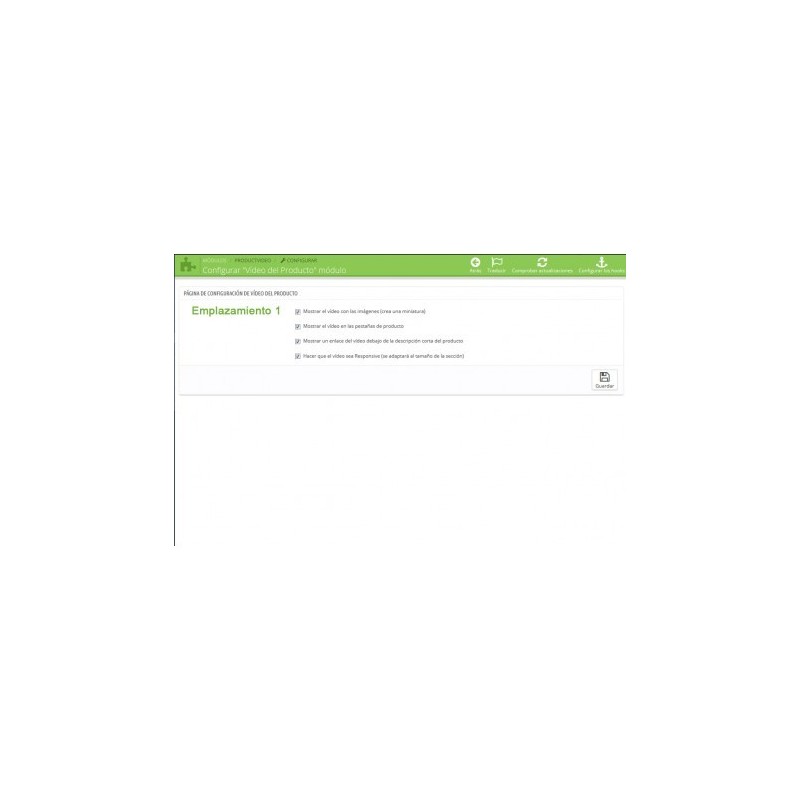
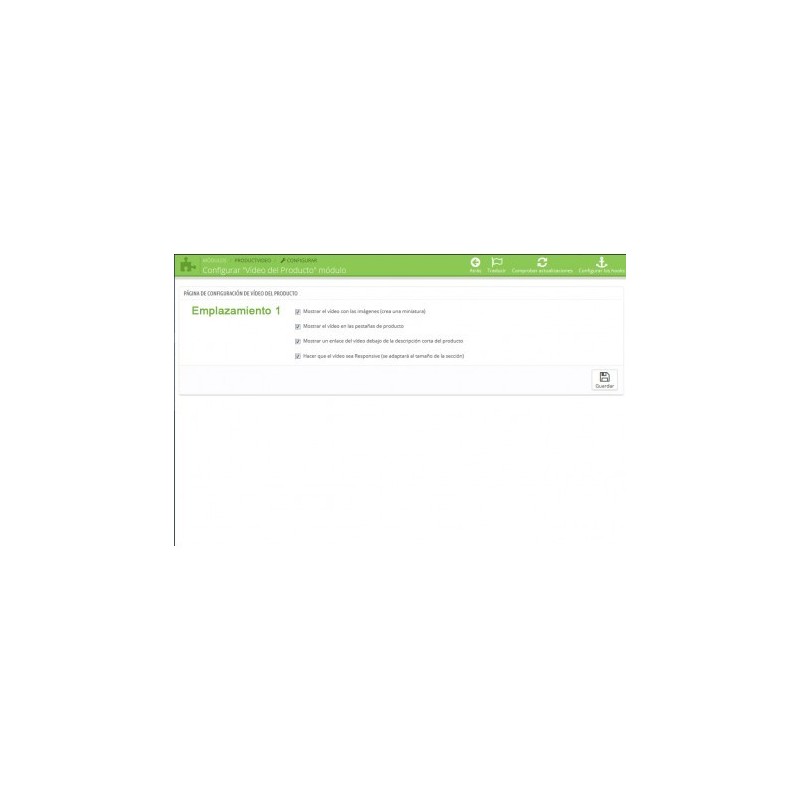
On this screen you will find all the global options to configure and customize the module to your liking.
To add videos to products: go to Products > Edit > Product Videos
There you will find several options; use the method that best suits your needs to add the videos.

Uninstalling and resetting

• When you uninstall the module, all videos will be deleted
• You can reset the module whenever you want without losing the stored data.

Recommendations

Some themes that do not use PrestaShop's default structures may require customization. If that is your case, contact us and we will do it for you.

Other

If you like the module and want to encourage us to keep adding great features, rate it and help other customers.

If you use a video provider other than YouTube or Vimeo, get in touch with us.

Support for installing and configuring the module. Available Monday to Friday (08:00 to 15:00)